

Appearance
Appearance
Get hands-on access to Windows and it's security controls. These basics will help you in identifying, exploiting and defending Windows.
Windows is the most popular operating system, used by both individuals and corporate environments all around the world. This module will get you comfortable using some of the key Windows features (in a safe environment), including user account permissions, resource management and monitoring, registry access and security controls.
In part 1 of the Windows Fundamentals module, we'll start our journey learning about the Windows desktop, the NTFS file system, UAC, the Control Panel, and more..
The Windows Desktop, aka the graphical user interface or GUI in short, is the screen that welcomes you once you log into a Windows 10 machine.
The file system used in modern versions of Windows is the New Technology File System or simply NTFS .
Before NTFS, there was FAT16/FAT32 (File Allocation Table) and HPFS (High Performance File System).
You still see FAT partitions in use today. For example, you typically see FAT partitions in USB devices, MicroSD cards, etc. but traditionally not on personal Windows computers/laptops or Windows servers.
NTFS is known as a journaling file system. In case of a failure, the file system can automatically repair the folders/files on disk using information stored in a log file. This function is not possible with FAT.
NTFS addresses many of the limitations of the previous file systems; such as:
If you're running Windows, what is the file system your Windows installation is using? You can check the Properties (right-click) of the drive your operating system is installed on, typically the C drive (C:).
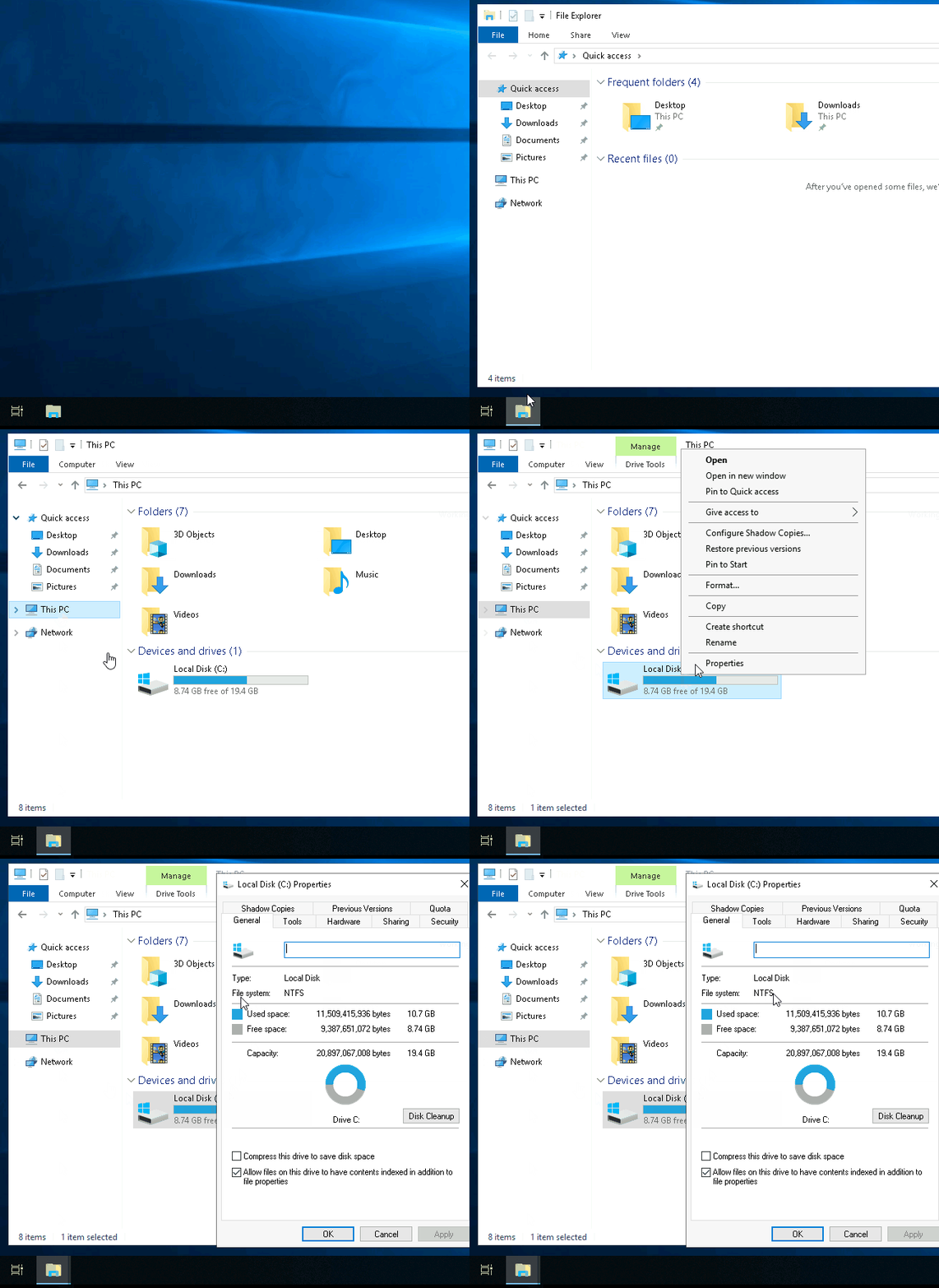
You can read Microsoft's official documentation on FAT, HPFS, and NTFS here .
Let's speak briefly on some features that are specific to NTFS.
On NTFS volumes, you can set permissions that grant or deny access to files and folders.
The permissions are:
The below image lists the meaning of each permission on how it applies to a file and a folder. (credit Microsoft )
| Permission | Meaning for Folders | Meaning for Files |
|---|---|---|
| Read | Permits viewing and listing of files and subfolders | Permits viewing or accessing of the file's contents |
| Write | Permits adding of files and subfolders | Permits writing to a file |
| Read & Execute | Permits viewing and listing of files and subfolders as well as executing of files; inherited by files and folders | Permits viewing and accessing of the file's contents as well as executing of the file |
| List Folder Contents | Permits viewing and listing of files and subfolders as well as executing of files; inherited by folders only | N/A |
| Modify | Permits reading and writing of files and subfolders; allows deletion of the folder | Permits reading and writing of the file; allows deletion of the file |
| Full Control | Permits reading, writing, changing, and deleting of files and subfolders | Permits reading, writing, changing and deleting of the file |
How can you view the permissions for a file or folder?
In the below image, you can see the permissions for the Users group for the Windows folder.
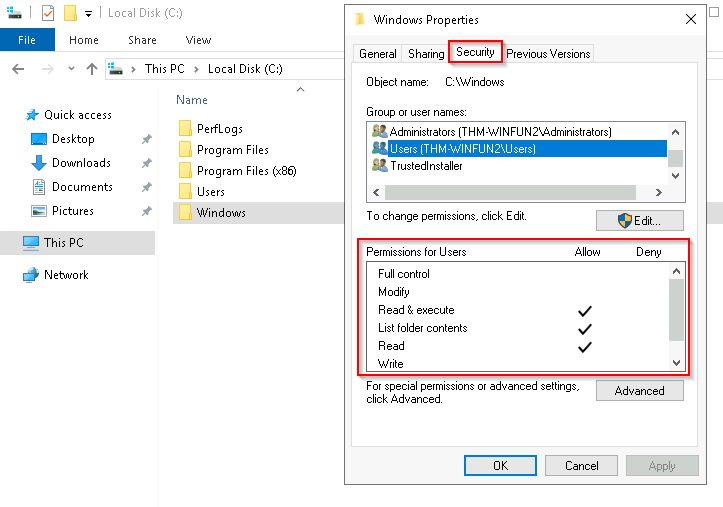
Refer to the Microsoft documentation to get a better understanding of the NTFS permissions for Special Permissions .
Another feature of NTFS is Alternate Data Streams ( ADS ).
Alternate Data Streams (ADS) is a file attribute specific to Windows NTFS (New Technology File System).
Every file has at least one data stream ( $DATA ), and ADS allows files to contain more than one stream of data. Natively Window Explorer doesn't display ADS to the user. There are 3rd party executables that can be used to view this data, but Powershell gives you the ability to view ADS for files.
From a security perspective, malware writers have used ADS to hide data.
Not all its uses are malicious. For example, when you download a file from the Internet, there are identifiers written to ADS to identify that the file was downloaded from the Internet.
To learn more about ADS, refer to the following link from MalwareBytes here .
Bonus : If you wish to interact hands-on with ADS, I suggest exploring Day 21 of Advent of Cyber 2 .
The Windows folder ( C:\Windows ) is traditionally known as the folder which contains the Windows operating system.
The folder doesn't have to reside in the C drive necessarily. It can reside in any other drive and technically can reside in a different folder.
This is where environment variables, more specifically system environment variables, come into play. Even though not discussed yet, the system environment variable for the Windows directory is %windir%.
Per Microsoft , " Environment variables store information about the operating system environment. This information includes details such as the operating system path, the number of processors used by the operating system, and the location of temporary folders ".
There are many folders within the 'Windows' folder. See below.

One of the many folders is System32 .

The System32 folder holds the important files that are critical for the operating system.
You should proceed with extreme caution when interacting with this folder. Accidentally deleting any files or folders within System32 can render the Windows OS inoperational. Read more about this action here .
Operating System (OS) is a layer between the hardware and the applications. From the application's perspective, the OS provides an interface to access the different hardware components, such as CPU, RAM, and disk storage. Examples of OS are Android, FreeBSD, Linux, macOS, and Windows.
Note: Many of the tools that will be covered in the Windows Fundamentals series reside within the System32 folder.
User accounts can be one of two types on a typical local Windows system: Administrator & Standard User.
The user account type will determine what actions the user can perform on that specific Windows system.
one way to access this information, and then some, is using Local User and Group Management.
Right-click on the Start Menu and click Run. Type lusrmgr.msc.
Each group has permissions set to it, and users are assigned/added to groups by the Administrator. When a user is assigned to a group, the user inherits the permissions of that group. A user can be assigned to multiple groups.
Note: If you click on Add someone else to this PC from Other users, it will open Local Users and Management.
startup: win + R enter UserAccountControlSettings
The UAC settings can be changed or even turned off entirely (not recommended).
You can move the slider to see how the setting will change the UAC settings and Microsoft's stance on the setting.
The large majority of home users are logged into their Windows systems as local administrators. Remember any user with administrator as the account type can make changes to the system.
A user doesn't need to run with high (elevated) privileges on the system to run tasks that don't require such privileges, such as surfing the Internet, working on a Word document, etc. This elevated privilege increases the risk of system compromise because it makes it easier for malware to infect the system. Consequently, since the user account can make changes to the system, the malware would run in the context of the logged-in user.
To protect the local user with such privileges, Microsoft introduced User Account Control (UAC). This concept was first introduced with the short-lived Windows Vista and continued with versions of Windows that followed.
User Account Control (UAC) helps prevent malware from damaging a PC and helps organizations deploy a better-managed desktop. With UAC, apps and tasks always run in the security context of a non-administrator account, unless an administrator specifically authorizes administrator-level access to the system. UAC can block the automatic installation of unauthorized apps and prevent inadvertent changes to system settings.
Note: UAC (by default) doesn't apply for the built-in local administrator account.
How does UAC work? When a user with an account type of administrator logs into a system, the current session doesn't run with elevated permissions. When an operation requiring higher-level privileges needs to execute, the user will be prompted to confirm if they permit the operation to run.
On a Windows system, the primary locations to make changes are the Settings menu and the Control Panel.
win + R enter control
The Task Manager provides information about the applications and processes currently running on the system. Other information is also available, such as how much CPU and RAM are being utilized, which falls under Performance.
In part 2 of the Windows Fundamentals module, discover more about System Configuration, UAC Settings, Resource Monitoring, the Windows Registry and more..
The System Configuration utility (MSConfig) is for advanced troubleshooting, and its main purpose is to help diagnose startup issues.
Reference the following document here for more information on the System Configuration utility.
Start Menu: win + R enter msconfig
Note: You need local administrator rights to open this utility.
We're continuing with Tools that are available through the System Configuration panel.
startup: win + R enter compmgmt.msc
The Computer Management (compmgmt) utility has three primary sections: System Tools, Storage, and Services and Applications.
startup: win + r enter msinfo32
What is the System Information (msinfo32) tool?
Per Microsoft, "Windows includes a tool called Microsoft System Information (Msinfo32.exe). This tool gathers information about your computer and displays a comprehensive view of your hardware, system components, and software environment, which you can use to diagnose computer issues."
The information in System Summary is divided into three sections:
System Summary will display general technical specifications for the computer, such as processor brand and model.
startup: win + r enter resmon
What is Resource Monitor (resmon)?
Per Microsoft, "Resource Monitor displays per-process and aggregate CPU, memory, disk, and network usage information, in addition to providing details about which processes are using individual file handles and modules. Advanced filtering allows users to isolate the data related to one or more processes (either applications or services), start, stop, pause, and resume services, and close unresponsive applications from the user interface. It also includes a process analysis feature that can help identify deadlocked processes and file locking conflicts so that the user can attempt to resolve the conflict instead of closing an application and potentially losing data."
In the Overview tab, Resmon has four sections:
🚀startup: win + r enter regedt32.exe
The Windows Registry (per Microsoft) is a central hierarchical database used to store information necessary to configure the system for one or more users, applications, and hardware devices.
The registry contains information that Windows continually references during operation, such as:
Warning: The registry is for advanced computer users. Making changes to the registry can affect normal computer operations.
There are various ways to view/edit the registry. One way is to use the Registry Editor (regedit).
Refer to the following Microsoft documentation here to learn more about the Windows Registry.
In part 3 of the Windows Fundamentals module, learn about the built-in Microsoft tools that help keep the device secure, such as Windows Updates, Windows Security, BitLocker, and more...
Updates are typically released on the 2nd Tuesday of each month. This day is called Patch Tuesday. That doesn't necessarily mean that a critical update/patch has to wait for the next Patch Tuesday to be released. If the update is urgent, then Microsoft will push the update via the Windows Update service to the Windows devices.
Refer to the following link to see the Microsoft Security Update Guide here.
Tip: Another way to access Windows Update is from the Run dialog box, or CMD, by running the command control /name Microsoft.WindowsUpdate.
Per Microsoft, "Windows Security is your home to manage the tools that protect your device and your data".
What is a firewall?
A security tool, hardware or software that is used to filter network traffic by stopping unauthorized incoming and outgoing traffic.
Per Microsoft, "Traffic flows into and out of devices via what we call ports. A firewall is what controls what is - and more importantly isn't - allowed to pass through those ports. You can think of it like a security guard standing at the door, checking the ID of everything that tries to enter or exit".
Note: Each network may have different status icons for you.
What is the difference between the 3 (Domain, Private, and Public)?
Per Microsoft, "Windows Firewall offers three firewall profiles: domain, private and public".
Configuring the Windows Defender Firewall is for advanced Windows users. Refer to the following Microsoft documentation on best practices here.
Tip: Command to open the Windows Defender Firewall is WF.msc.
Per Microsoft, "Microsoft Defender SmartScreen protects against phishing or malware websites and applications, and the downloading of potentially malicious files".
Refer to the official Microsoft document for more information on Microsoft Defender SmartScreen here.
Check apps and files
Exploit protection
Even though you'll probably never change any of these settings, for completion's sake, it will be covered briefly.
Core isolation
Security processor
Your security processor, called the trusted platform module (TPM), is providing additional encryption for your device.
What is the Trusted Platform Module (TPM)?
Per Microsoft, "Trusted Platform Module (TPM) technology is designed to provide hardware-based, security-related functions. A TPM chip is a secure crypto-processor that is designed to carry out cryptographic operations. The chip includes multiple physical security mechanisms to make it tamper-resistant, and malicious software is unable to tamper with the security functions of the TPM".
What is BitLocker?
Per Microsoft, "BitLocker Drive Encryption is a data protection feature that integrates with the operating system and addresses the threats of data theft or exposure from lost, stolen, or inappropriately decommissioned computers".
On devices with TPM installed, BitLocker offers the best protection.
Per Microsoft, "BitLocker provides the most protection when used with a Trusted Platform Module (TPM) version 1.2 or later. The TPM is a hardware component installed in many newer computers by the computer manufacturers. It works with BitLocker to help protect user data and to ensure that a computer has not been tampered with while the system was offline".
Refer to the official Microsoft documentation to learn more about BitLocker phere.
Per Microsoft, the Volume Shadow Copy Service (VSS) coordinates the required actions to create a consistent shadow copy (also known as a snapshot or a point-in-time copy) of the data that is to be backed up.
Volume Shadow Copies are stored on the System Volume Information folder on each drive that has protection enabled.
If VSS is enabled (System Protection turned on), you can perform the following tasks from within advanced system settings.
From a security perspective, malware writers know of this Windows feature and write code in their malware to look for these files and delete them. Doing so makes it impossible to recover from a ransomware attack unless you have an offline/off-site backup
end
Note: Attackers use built-in Windows tools and utilities in an attempt to go undetected within the victim environment. This tactic is known as Living Off The Land. Refer to the following resource here to learn more about this.